September 1, 2025

The 11 Best Tools for Ripping DVDs and Blu-rays to Your Computer

Despite the prevalence of free and paid streaming services, DVDs and Blu-rays persist. Maybe you’ve got shelves of DVDs and Blu-rays from the days before streaming. Possibly the nostalgia factor keeps you hanging onto those discs, or you’re just waiting to digitize your collection.
Regardless, there are many reasons to pull physical media onto your hard drive. In this article, we’ve rounded up the best tools for ripping DVDs and Blu-rays to your computer!


1. MakeMKV
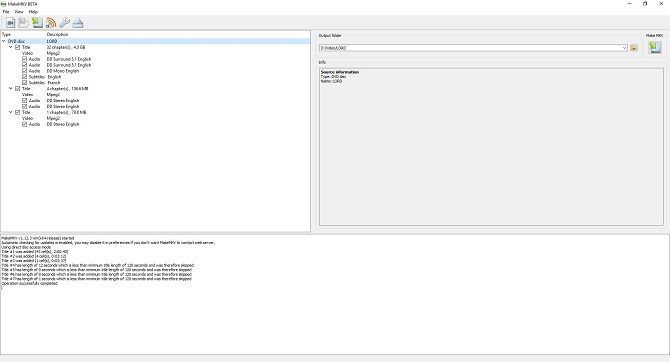
The 11 Best Tools for Ripping DVDs and Blu-rays to Your Computer - MakeMKV


In MakeMKV, you’ll find a superb cross-platform Blu-ray and DVD backup utility. It boasts DVD and Blu-ray decrypter functionality. To rip a DVD or Blu-ray to your computer, merely pop in a disc, select the media in MakeMKV. Upon doing so, MakeMKV runs through some initial work loading information. You’ll see the various titles and can expand the sections to view subtitle and audio track information.
From here, select the subtitle and audio tracks you’d like to rip, along with the titles you want to transfer. Generally, the title with the most tracks will be the feature, while smaller titles are bonus features, deleted scenes, or whatever else is on the disc. However, this varies by disc. Deselect everything you don’t need, then click the MakeMKV button.
Now, let MakeMKV do its work. DVDs typically rip quickly, in under 20 minutes. However Blu-rays range from 30 minutes to a couple of hours depending on the length of the movie, and the extras you want.
MKV files are slightly smaller than original disc images. DVD backups are about 10 percent smaller, with Blu-ray rips roughly 40 percent smaller than their disc counterparts. Ripping a Blu-ray disc provides a much larger file than a DVD, well over 4GB. While a Blu-ray MKV rip provides maximum quality, it takes up more space. Converting your MKV to another format such as an MP4 might produce a smaller file, albeit at the cost of audio and video quality.
Download: MakeMKV for Windows, Mac, and Linux ($60)


2. Handbrake
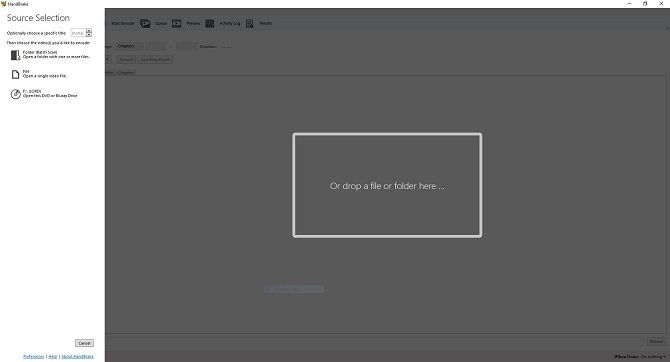
The 11 Best Tools for Ripping DVDs and Blu-rays to Your Computer - Handbrake


Handbrake is a fantastic open-source DVD ripper. It’s a completely free Blu-ray ripper. Aside from ripping DVDs and Blu-rays, you can convert videos, add subtitles to films, and more using Handbrake. Simply select a profile depending on the target device or quality, decide if you want the subtitles, then hit Start Encode.
5 Clever Things You Can Do with HandBrake 5 Clever Things You Can Do with HandBrake HandBrake is a powerful tool, designed to help you get the most out of your digital media. We have compiled some of HandBrake's most ingenious uses. Check it out! Read More Presets range from device options including iPad and iPod to high quality 1080p options, and more. Plus, you can pick different formats such as MP4, H.265, and H.264. With Handbrake, you can easily rip a DVD to MP4 and MKV files. Since you can tweak tons of settings or merely choose a preset and start encoding, Handbrake is as intuitive or complicated as you make it. Overall, it’s one of the best free DVD rippers you can download.
This BLu-Ray and DVD decrypter is cross-platform, free, and open-source. Moreover, frequent updates ensure that Handbrake offers a cutting edge feature set.
Download: Handbrake for Windows, Mac, and Linux (Free)


3. Freemake Video Converter

Freemake remains a top choice for DVD ripping software. What’s neat is Freemake’s arsenal of video editing options. Not only is Freemake one of the top free DVD ripping software options available, it’s packed with editing capabilities.
Using Freemake, you can join files together. You can even join up files to have one big merged file. Videos can also be converted to Flash or HTML5, as well as MP3. Among its many output file formats, you can rip DVDs to MP4, AVI, MKV, 3GP, and more.
One great feature is when you rip it to become a DVD, you can also add a menu with clickable chapter titles. With its ability to rip videos to a variety of formats as well as video modification, Freemake is an excellent free DVD ripper.
Download: Freemake for Windows (Free)


4. WinX DVD Ripper
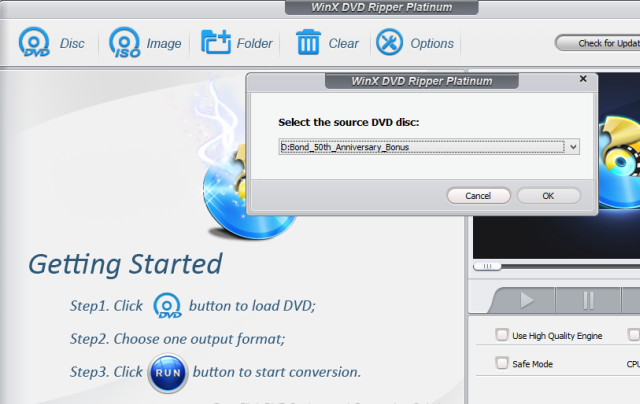
The 11 Best Tools for Ripping DVDs and Blu-rays to Your Computer - WinX


WinX comes in two flavors: there’s a free DVD ripper as well as WinX DVD Ripper Platinum Edition. While WinX’s def ripping software is free, it’s basically a trial version of the Platinum edition. However, once the trial expires, it’s totally usable and merely drops a few premium features.
A while back I snagged a free copy of WinX DVD Platinum Edition with a promotion. Currently, WinX DVD Ripper Platinum is my go-to for DVD rips, but its free DVD ripper should suffice for most users.
The free iteration will rip a DVD to MP4, WMV, AVI, FLV, MOV, MPEG, H.264, iPhone, iPod, Apple TV, Android, Samsung, HTC, and PSP. With it, you create an exact 1:1 clone with no quality loss. WinX DVD Ripper boasts a fast backup speed, with taking roughly five minutes to create an MPEG2 copy of a DVD.
The Platinum version adds additional output formats, such as creating ISO files. You’ll see faster ripping speeds as well as video editing features. WinX DVD Ripper is a superb alternative to Handbrake and Freemake.
Download: WinX DVD Ripper for Windows, Mac (Free, paid option available)


5. WonderFox DVD Ripper Pro
WonderFox-Video-Formats


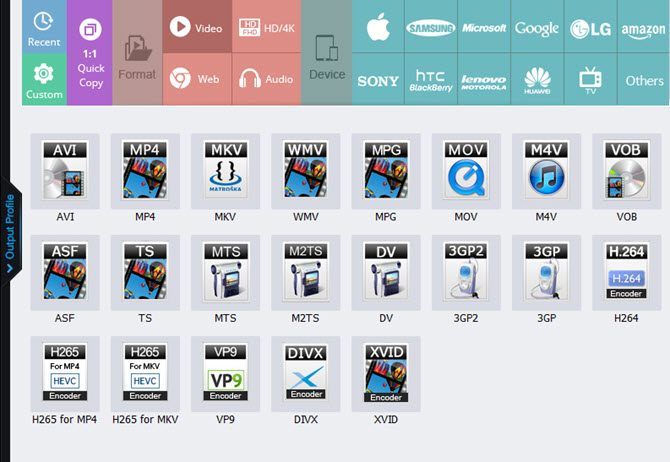
In addition to WinX, I’ve really enjoyed WonderFox DVD Ripper Pro. It’s simple to use, making DVD ripping easy. Just pop in a DVD, select your preferred output format, and start digitizing your DVDs. WonderFox DVD Ripper Pro lets you quickly backup DVDs in as little as five minutes, and can create 1:1 copies for top-notch quality.
WonderFox Makes Ripping DVDs Easy WonderFox Makes Ripping DVDs Easy Want to rip your DVDs to your computer easily and in full quality? WonderFox makes this happen. Read More Download: WonderFox DVD Ripper Pro for Windows ($30)


6. Aurora
The 11 Best Tools for Ripping DVDs and Blu-rays to Your Computer - Aurora


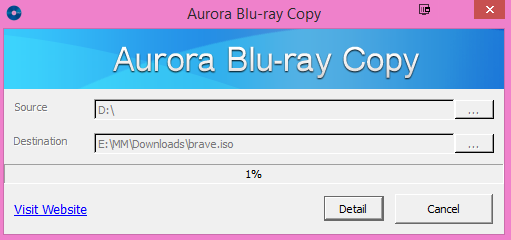
Aurora is free Blu-ray ripper that sports cross-platform compatibility. It will burn the Blu-ray disc into an ISO file, and then burn the ISO file onto a blank disc. Alternatively, simply use media server software such as Plex to play your ISO files. This is a powerful Blu-ray decrypter that’s fast and free.
While Aurora includes a robust feature set, it’s limited as Blu-ray ripping software. You may copy a Blu-ray to an ISO file. Unlike options such as Handbrake, WinX DVD Ripper, or MakeMKV, you won’t find additional video file output formats or compression tools.
Still, Blu-ray ripping is indeed speedy and it’s a robust Blu-ray ripper with Mac and Windows installers.
Download: Aurora for Windows, Mac (Free)


7. CloneDVD and CloneBD

The 11 Best Tools for Ripping DVDs and Blu-rays to Your Computer - CloneDVD
Image Credit: CloneDVD


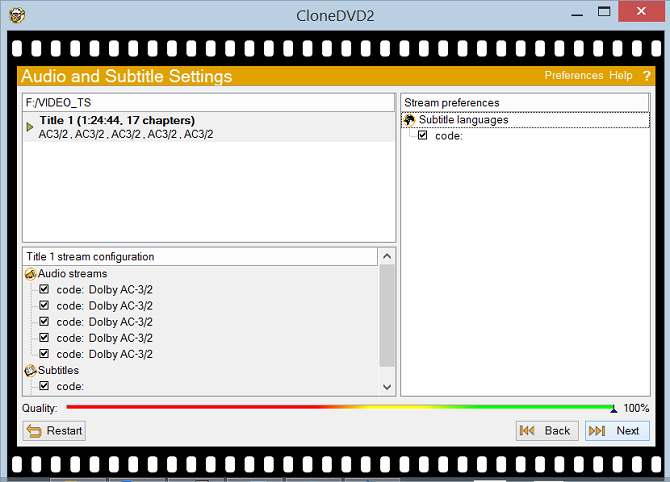
Aptly named, CloneDVD clones your DVDs. Simply insert your disc, select which chapters you want copied, choose your language, whether you want subtitles, then rip your DVD.
Once the file, in DVD format, has been copied to your computer, you can burn the ISO to a blank DVD disc, use software like Handbrake to convert your DVD file to an MP4, or mount the ISO file on your computer using a virtual drive.
Aside from its DVD backup utility, there’s Blu-ray ripping software as well. CloneBD can backup entire Blu-ray discs as ISO files, or output to the likes of MKV, AVI, and MP4.
Download: CloneDVD for Windows ($36)
Download: CloneBD for Windows ($92)


8. DVD Shrink
The 11 Best Tools for Ripping DVDs and Blu-rays to Your Computer - DVDShrink


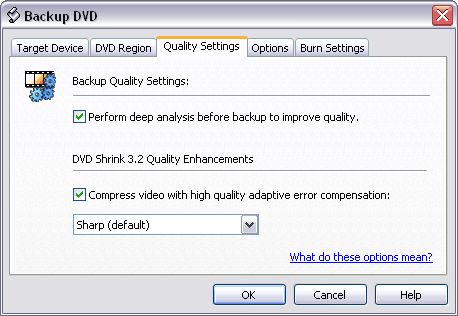
DVD Shrink is unique in its ability to backup an entire movie and compress it for burning to a blank DVD. A standard DV-R/RW disc is 4.7GB whereas most common films exceed that size. Therefore, DVD Shrink compresses the data from the original disc, making the file as small as possible.
You can create a compilation from one or more source discs, as well as discard any parts you don’t need. This software provides a solution to rip an entire DVD to your computer or reauthor the video to abandon chunks you don’t need.
Download: DVDShrink for Windows (Free)


9. VLC Player
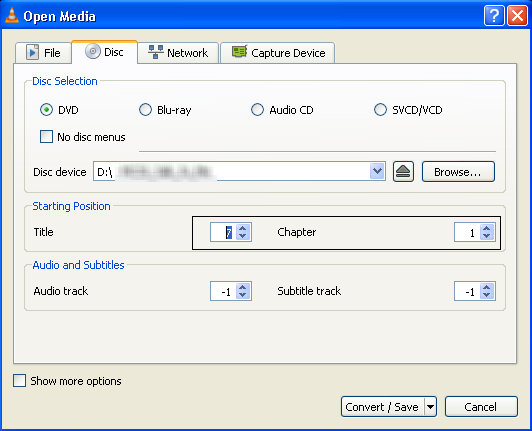
The 11 Best Tools for Ripping DVDs and Blu-rays to Your Computer - VLC


While there are loads of video playback apps, VLC remains one of the most popular and feature-rich media players.
7 Top Secret Features Of The Free VLC Media Player 7 Top Secret Features Of The Free VLC Media Player That VLC pretty much plays everything that you throw at it is old news. It is also a media genie when it comes to other things apart from playing movies. We looked at some of... Read More VLC Player rightfully earned its reputation for being able to play virtually any video format you might want to watch. Although it’s commonly considered the go-to for media playback, you may use VLC to rip a DVD or Blu-ray.
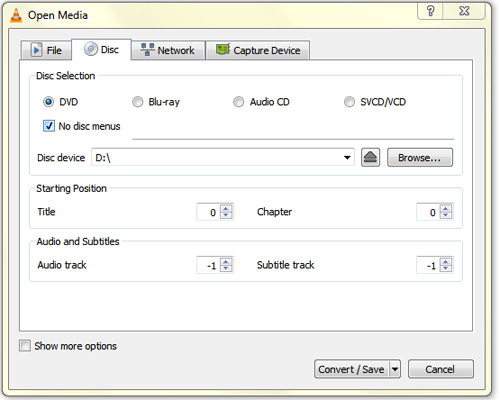
Merely choose what you want converted, select No disc menus if you don’t want menus, point VLC to the disc drive on your computer, then click Convert/Save. Ripping can take quite some time, though. Some users have reported it taking up to two hours. Options like MakeMKV or Freemake can do it in 15-20 minutes.
Download: VLC for Windows, Mac, Linux (Free)


10. DVDFab
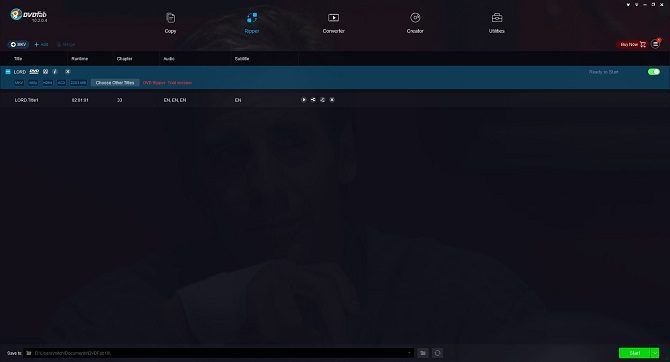
The 10 Best Tools for Ripping DVDs and Blu-rays to Your Computer - DVDFab


DVDFab is a bit of DVD ripping software which received a lot of positive praise. As well as being able to rip a DVD to your computer in standard formats, it can also rip only the audio. So if you ‘d like music from a film or show, then DVD Fab can grab it for you.
Batch conversion allows you to rip more than one title at a time. Specify exactly the start point and end point that you want converted in a disc, and you can also automatically crop the screen to show what you want. For a nifty Blu-ray decrypter, check out DVDFab’s Blu-ray ripper.
Download: DVDFab for Windows, Mac ($55)
Download: DVDFab Blu-ray Ripper for Windows, Mac ($65)


11. DVD Decrypter
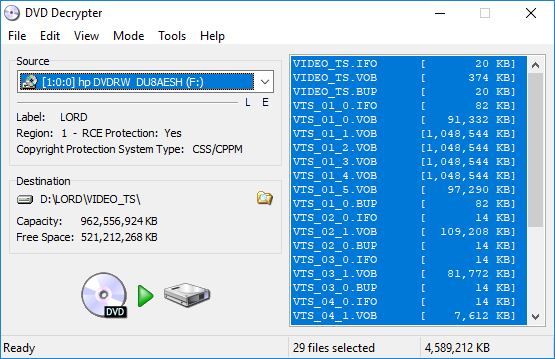
The 11 Best Tools for Ripping DVDs and Blu-rays to Your Computer - DVD Decrypter


As the name suggests, DVD Decrypter is an awesome free DVD ripper. While its official site shut down in 2005, it’s still available via an unofficial mirror. Ridiculously easy to use, DVD Decrypter loads title information making it easy to back up an entire or partial disc. Overall, it’s an excellent DVD ripping software option that’s totally free.
Download: DVD Decrypter for Windows (Free)

The Best Tools for Ripping DVDs and Blu-rays

While these are the 11 best DVD and Blu-ray ripping tools available, there are plenty of options to rip a DVD to your computer. Which option you choose depends on whether you’re ripping Blu-rays or DVDs, what file formats you prefer, ideal quality, and more.
Once you’ve digitized your movie and TV show collection, learn how to watch your media from anywhere using Plex!
Your Guide To Plex - The Awesome Media Center Your Guide To Plex - The Awesome Media Center If you have a lot of locally-saved movies and TV shows, you need to install Plex. And this is the only guide to getting started with Plex you'll ever need to read. Read More

Source:  https://www.makeuseof.com/tag/9-tools-easily-rip-dvds-blu-rays-computer/

7 Top Secret Features of the Free VLC Media Player

A few months back, VLC Media Player got Chromecast support and 360-degree video views. It’s just another tiny notch on the popularity of the open source player which can handle anything that you throw at it (as long as it’s a media file!).
The Windows version of the player is closing in on 50 million downloads, and that’s discounting all the other platforms it can be installed on. Perhaps the secret to its longevity is the modular design which gives it a rich set of features. Today, let’s focus on the few “secret” features under the hood which you can use every day.

1. Use VLC as a Video Downloader for YouTube

There are several capable free downloaders available for YouTube. But, VLC has this feature built in. Though it’s not a one-click downloader and you will have to take the help of your browser.
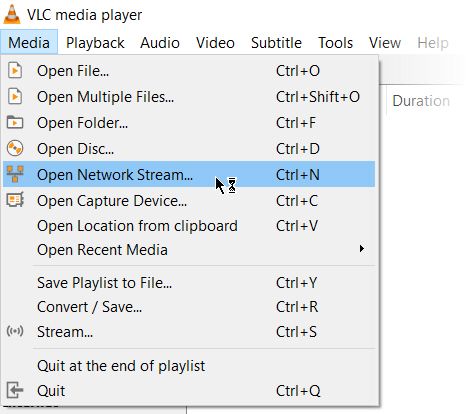
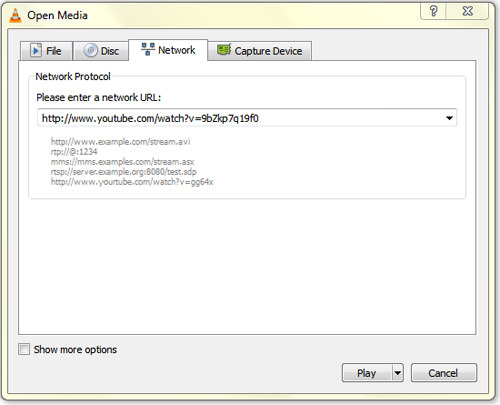
  1. Click on Media > Open Network stream.


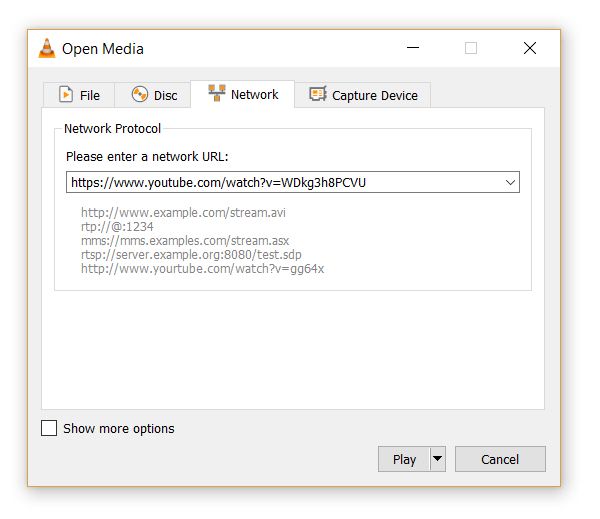
  2. Capture YouTube URL
  3. Paste the YouTube URL and click the Play button in the player.


  4. Stream YouTube


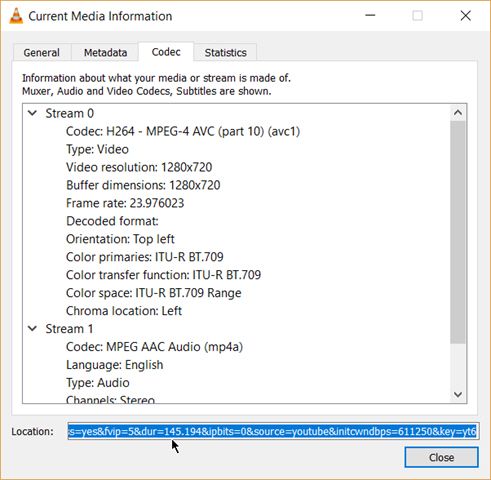
  5. VLC Media Player starts streaming the video.  Now, click Tools > Codec Informationand at the bottom of the window you will see a Location box.


  6. Copy-paste YouTube location information.


  7. Copy the long URL in the box and paste this into your browser’s address bar. The browser will now start playing the video file. You can download the video file to your desktop by doing a Save video as with a right-click on the video. Or you can choose to record the video.

2. Convert Videos to Any Format

Downloading a video is often the first part. Converting that video so you can play it on a device of your choice is the second part. The VLC Player can do this too.
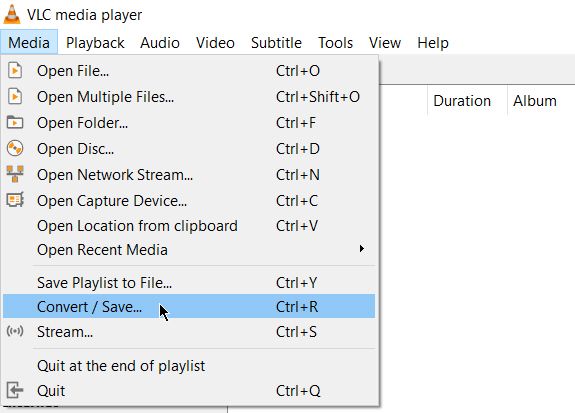
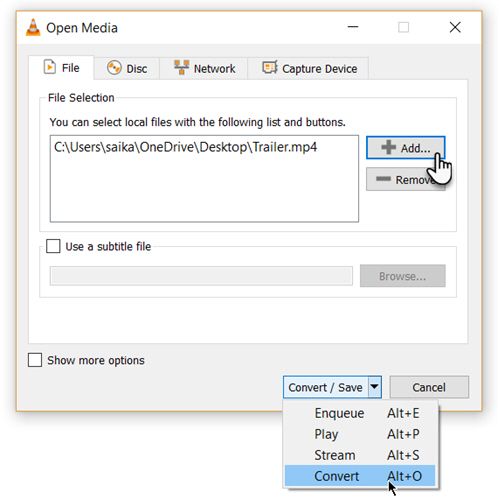
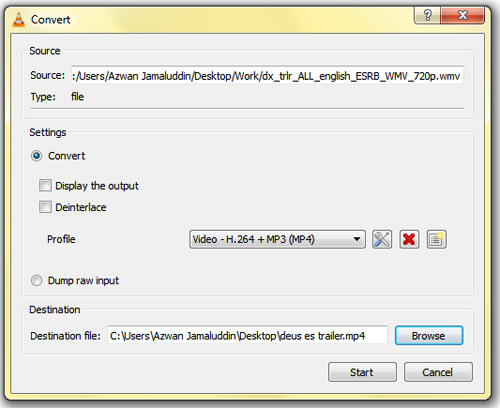
  1. From the toolbar, click on Media > Convert / Save.

  2. VLC Convert Video


  3. In the Open Media dialog box, click on the Add button and choose the media file for conversion. Then, click on the Convert / Save dropdown > Convert.


  4. VLC - Convert Video-Choose File


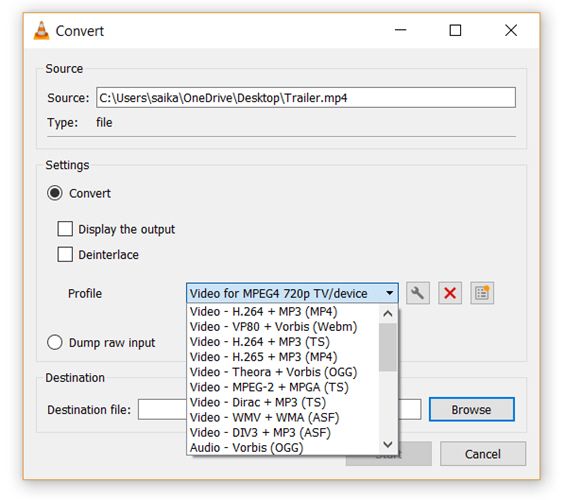
  5. Open the dropdown menu for Profile and select the file format that you would like to convert your file to. You can also click on the gear icon next to it and edit the chosen profile.


  6. Pick a profile and start conversion.

  7. Click on Browse and select a location to save the converted file. Then, click on Start to begin the conversion and monitor its progress in the bar below.

3. VLC as a Graphic Equalizer for Your Music

VLC Graphic Equalizer


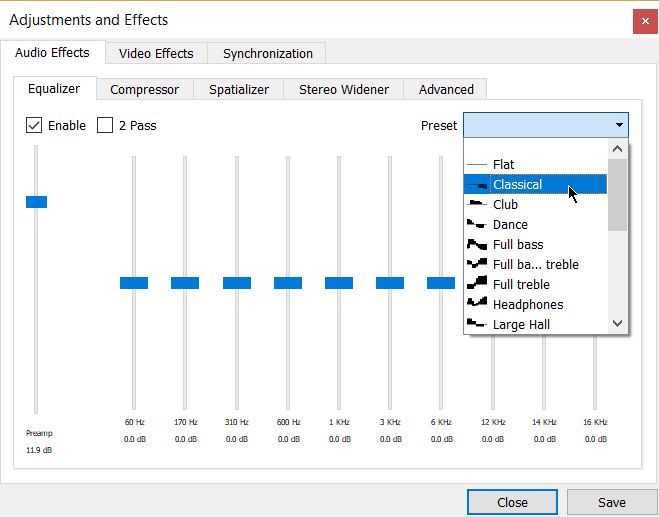
You may be using VLC as a video player only, but VLC is a cross-platform standalone media player too and that brings full audio effects with playlist support. VLC not only displays cover art but also has a pretty good graphic equalizer tucked away inside it.
Display it with the shortcut keystrokes Ctrl + E (or go to Tools > Effects and Filters > Audio Effects). Adjust the sound quality with the available presets, or fine-tune it with the EqualizerCompressor, and Spatializer tabs.

4. Activate Audio Normalization to Protect Your Ears

Normalize Volume


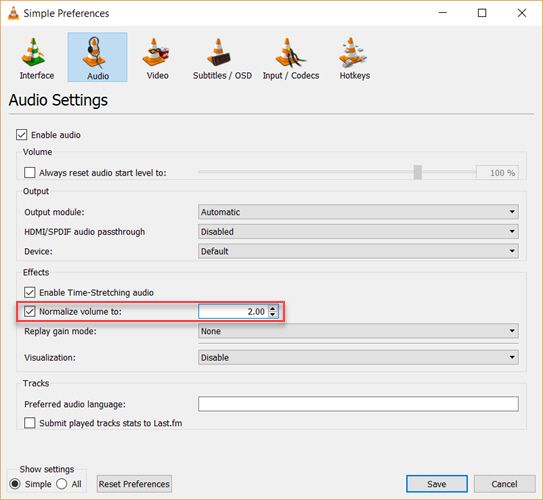
The general audio settings for the VideoLan Player are located under Preferences. One of the key features called Audio Normalization helps to optimize the volume of any media by a fixed amount and improve the sound quality.
Go to Tools > Preferences > Audio > Enable Normalize volume to. The value you set here will help to adjust the decibel levels of dialog, music, explosions, gunshots etc. in the movies you watch. Restart VLC after enabling the setting.
In fact, configure this immediately after you download and install the VLC player. It will make your audio sound better.

5. Play Internet Radio and Podcasts in VLC

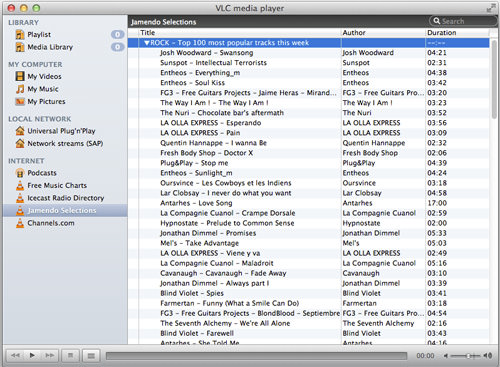
One of VLC’s little used features could definitely be its ability to find and play internet radio. The VLC Player can fill all your audio needs as it can not only stream radio but also play podcasts.
  1. Launch VLC and open the Playlist sidebar.
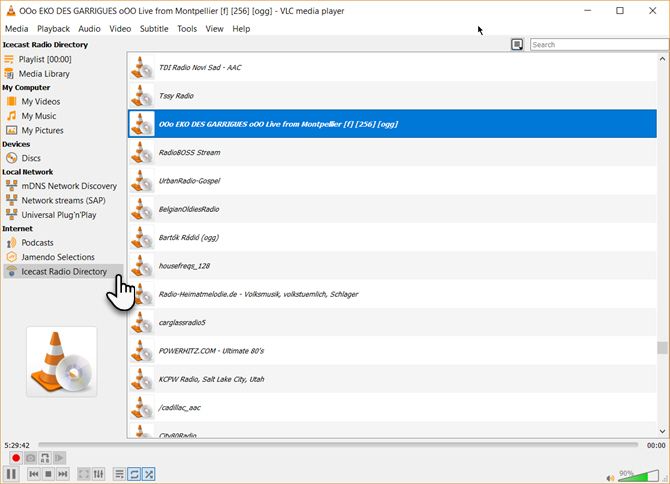
  2. Under Internet, you can browse through the two radio servers—Jamendo and Icecast—and choose a station of your choice by clicking on it. Also, make sure the Playlist view mode is set to List (Go to View > Playlist View Mode > List).


  3. VLC - Internet Radio


  4. If your favorite internet radio station is not on the list, use the station’s URL to stream it via VLC. Go to Media > Open Network Stream… Enter the URL and press Play in order to begin listening.
And to play podcasts in VLC:
  1. You can manage your favorite podcasts via the same Playlist interface.
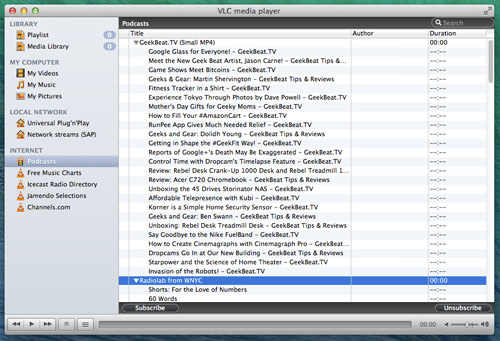
  2. Go to Playlist and under the Internet section, select Podcasts.
  3. As soon your cursor is over the Podcasts section, click the plus sign.
  4. Copy and paste the RSS feed URL of the podcast you wish to listen and click on OK. The podcast will be added to the sidebar and you can pick the episode you want to listen to.

6. Loop a Section of a Video or Audio File

Most media players can loop an entire video or a soundtrack. With VLC, you have the added bonus of looping any specific section of a media file.
  1. Open the video or audio file with VLC. Go to View > Advanced Controls.
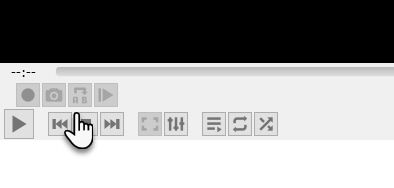
  2. Now, a few more buttons will be displayed above the normal play and stop controls.
    VLC Advanced Controls
  3. To start the loop from a specific part of the video, move the playhead to the part where you want the loop to start (Point A).
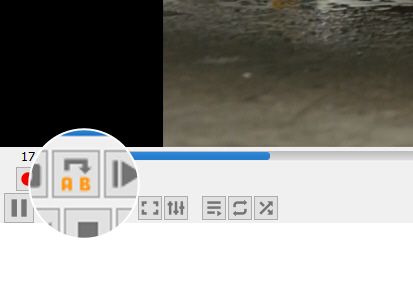
  4. Click the loop button once. The “A” mark on the button will turn red. To finish the loop, take the video to the endpoint and click on the same button again. You will see both the A and B points of the button are red.

  5. Set VLC Loop
  6. Now play the video and the section will loop. Click the loop button once again if you want to switch it off.
This is a handy feature when you want to review a how-to video or hear an audio file over and over to get it right. I often use this feature to study Photoshop tutorial videos.


7. Add Features With VLC Add-Ons and Extensions

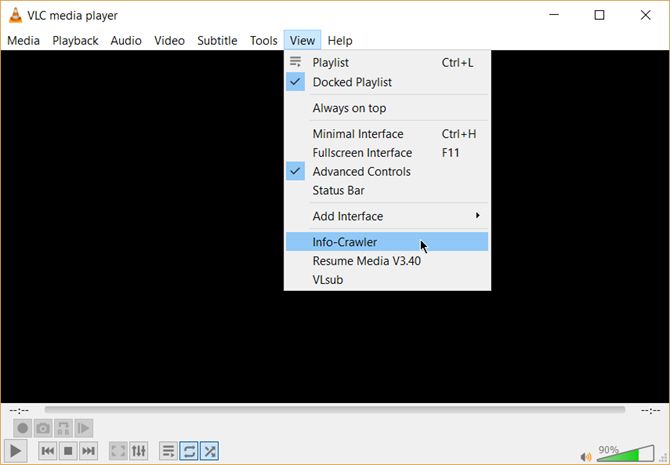
Install and View VLC Add-ons


For everyday use, VLC’s default package of features may be enough. But if you are looking for added functionality then there’s an entire catalog of add-ons you can install alongside. Remember, VLC has a huge open-source community behind it and they have helped create extensions, skins, playlist parsers, and other assorted tools.
These extensions will help you add more “secret” features to the player like tools which will help you search for subtitles from the player itself. Extensions may also work in macOS and Linux, so do doublecheck the instructions on the add-on’s page.
  1. Visit the VLC add-ons page and browse through the two views—Top or Latest.
  2. Click the Download button on the add-ons page and download the ZIP file. Extract the file. (VLC add-ons have the LUA extension.)
  3. On Windows, place the .lua files in this Windows directory:
    C:\Users\NAME\AppData\Roaming\vlc\lua\extensions folder.
  4. Restart VLC. You can access all your installed extensions from the View menu.
Some of the better extensions to consider include:

VLC Is Full of Cool Tricks

If you know about these features, then VLC hides few secrets from you. Now, flex your muscles and explore the more advanced possibilities of this fantastic player that has stood the test of time. Maybe create a streaming media server for your home or cast your media files from a Windows PC to your Android phone.

Source: https://www.makeuseof.com/tag/7-top-secret-features-free-vlc-media-player-si/

The Best FLAC CUE Splitters Help You to Split FLAC into Multiple Tracks

FLAC allows you to backup CDs without any quality damage and usually, when you rip CD to FLAC, you will get a large FLAC file along with a cue file containing the tracklist. To split an individual FLAC file to multiple tracks, you need a FLAC CUE splitter that enables spliting the FLAC file via the CUE file. And here we will show you two useful splitters. Moreover, if you need to convert the separated FLAC files to MP3, WAV, and other formats, this audio converter will be useful:

FLAC is a lossless audio format favored by many music enthusiasts. However, whether you archive CDs by ripping CDs to FLAC or download a FLAC album on the Internet, you will usually get a large single FLAC image file including all FLAC tracks along with a small cue file that contains metadata indexes of all audio tracks. Because the CUE file exists, you can split one single FLAC album file into individual tracks. Certainly, a great FLAC CUE splitter is an essential factor. The following part introduces two useful FLAC splitter software that can help you split FLAC CUE in easy way.

Method 1 - Split FLAC CUE with Foobar2000

Method 1 - Split FLAC CUE with Foobar2000

As a high-quality music player, Foobar2000 can also cut FLAC CUE as a FLAC CUE splitter. First install the player on your PC: http://www.foobar2000.org/

How to Separate FLAC Files with a FLAC Splitter

Step 1. Open Foobar2000, select File > Open and import .cue files. Or directly drag and drop the files into the music player to split FLAC CUE files.

Step 2. You will find that the FLAC file has been split into individual track. Press Ctrl + A to select all tracks, right click and select Convert > Quick convert.

Step 3. Choose FLAC and click on Convert button. You can also choose MP3 if you need to convert FLAC CUE to MP3. Please note that, if the FLAC encoder is missing, visit the page to install it: http://www.foobar2000.org/encoderpack

Step 4. Specify an output folder, click on Select Folder and the conversion will be started at one go.


20 Tips For VLC Player Users

VLC is probably the most versatile video player you can download due to its amazing ability to play almost any codec you throw at it. This alone makes this app a worthy addition to your software suite. While most people use VLC as a simple video player, it is so much more than that. VLC is the Swiss Army Knife of video players with features that are hidden and unknown to the casual user.

These features include the ability to do video recording, playing Internet radio and video, simple editing; just to name a few. To go through the number of hidden features VLC has could fill an entire wiki (which it does). So instead of you reading through the incredibly technical wiki, we have gathered the best 20 VLC tips and tricks you may not know.

Note: The tips included here are done using the Windows version of VLC, unless specified.

10 Websites to Edit Your Videos Online

10 Websites to Edit Your Videos Online

Online video editors give you a great solution when you don't have the time, skill, or resources to... Read more

1. Convert Media Files

Did you know that you can use VLC to convert your media files into a wide variety of formats? The app lets you choose exactly how you would like to convert them or you can simply use a given preset.

Here’s how you do it.

  1. Go to Media > Convert / Save
  2. Add a file and click Convert / Save
  3. Select the desired codec to convert to.
VLC Convert

2. Play/Download Online Videos

You can actually use VLC to play and download online videos. You can use the full suite of tools to manipulate video playback or save them for later play.

  1. Go to Media > Open Network Stream
  2. Press the Network tab
  3. Enter the URL of the video and click Play, to save it, instead of Play, choose Convert
VLC Online Video

3. Record A Currently Playing Video/Audio

If you want to record and capture a snippet of a video that you are playing, VLC has an option to do so. To enable this feature, on the menu bar, click View > Advanced Controls. Extra buttons will appear on the app. While playing a media file, click on the Record button to start recording. Press again to stop.

Recordings will be saved in the Videos folder for videos while audio will go to your Music folder. On the Mac version, go to the menu bar and click Playback > Record or use the shortcut CMD + ALT + r.

vlc record

4. Record Desktop

VLC is able to record a video of your desktop, acting as a screen recorder. To enable desktop recording, here’s what to do:

  1. Go to Media > Convert / Save
  2. Go to the Capture Device tab
  3. On the Capture mode drop down menu, select Desktop
  4. Select your frame rate under Desired frame rate for the capture
  5. Click Convert / Save
  6. Select your codec and the destination and click Start. To stop recording, click the Stop button.
vlc desktop record

5. Record Webcam

You can record a video in VLC using the webcam. Go to Media > Open Capture Device and select DirectShow from the Capture mode drop menu. From here you will select the video and audio device from where it will capture. Click Play and VLC will stream from your webcam. Use VLC’s ability to record currently playing video and you have yourself a webcam recorder.

vlc webcam

(Image Source: AddictiveTips)

6. Rip A DVD

Did you know you can use VLC to rip your DVD’s into your computer? It’s a simple way to create an archive of your DVD’s for backup purposes or a way to view them when you do not have access to the physical disc.

  1. Go to Media > Convert / Save
  2. Click on the Disc tab
  3. Under Disc Selection, click on the radio button of the media disc you are using and check No disc menu
  4. Make sure the selected Disc device is correct and click Convert / Save
  5. Choose the codec you wish to save in and save it with the extension that is compatible with your codec
VLC DVD Rip

7. Remote Control VLC From A Browser

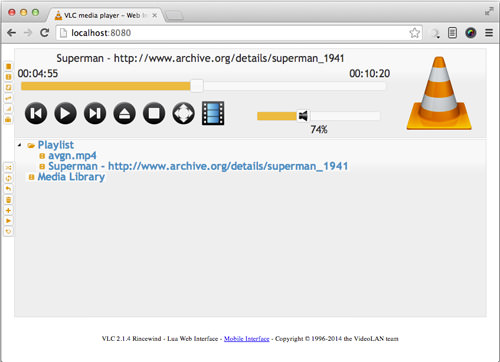
There is an option available to use a web browser as a simple remote control for VLC. This is incredibly useful when running VLC on a media center PC, as you can control it using a laptop or your mobile phone.

To enable this feature:

  1. Go to Tools > Preference
  2. Click the radio box All under Show settings.
  3. Go to Interface > Main Interface and tick the Web check box
  4. Under Interface > Main > Lua, set the Lua HTTP Password

Remote control through the browser should now be enabled.

To test this, on your browser with VLC installed, go to localhost:8080. It will ask for the password and once given, it should display a remote control interface for VLC. To use this on another device, you will need to find the IP address of your devices’s browser. Add the address on your device’s browser with :8080 appended to it, for example 128.0.0.1:8080. Your device is now a simple VLC remote.

VLC Remote Control

8. Video And Audio Effects

VLC gives you a multitude of tools that allows you to manipulate the video and audio of any given media. To see the tools available, go to Tools > Adjustments and Effects. From here, you will see tabs that contain the A/V manipulation tools. On the video side, you can adjust colors, crop, rotate video, add filters, etc. With audio, you get the usual equalizers to tune your music.

vlc audio effect

9. Subscribe To Podcast

If you are looking for a very simple podcast subscription app, VLC can fill that need. You can use the app to subscribe to your favorite video and audio podcast and view them all within the app.

To subscribe to a podcast, got to the Playlist sidebar, under Internet, there is a Podcast option. Hover your mouse cursor over it and a + will appear. Click on it and add the RSS for your podcast. On the Mac version, go to the Podcast option and press Subscribe to add the RSS URL.

VLC Podcast

10. Play Internet Radio

VLC provides Internet Radio channels on its Playlist sidebar for you to browse and search for online radio stations. If the provided stations don’t interest you, you can play your favorite channel by getting the station’s URL and opening it using Media > Open Network Stream.

VLC Internet Radio

11. Video Wallpaper

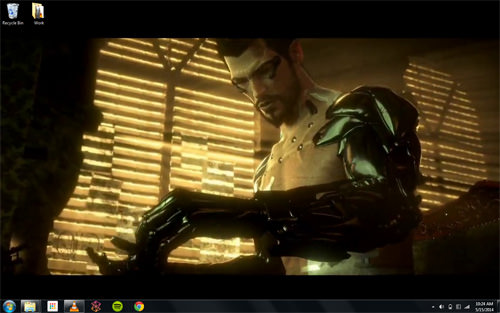
Ever wanted to have a video playing as your desktop wallpaper? There is a simple way to toggle this using VLC. Go to Tools > Preference. Click on Video and under the Output drop down box, select DirectX (DirectDraw) video output. Save and restart VLC. The next time you play a video, an option will appear on the right-click menu under Video to play as a Set as Wallpaper. Choose it and the video will then start playing as your desktop background.

VLC Video Wallpaper

12. Add Watermarks On Video

You can add your own watermarks on a video through VLC, bypassing a need for a dedicated video editor to do so. Do remember though that you will need to use VLC’s recording feature to save the video with the watermark.

  1. Go to Tools > Effects and Filters
  2. Click on the Video Effects tab
  3. Under the Overlay tab, you will get options to either add in your logo or a simple text to the video
VLC Watermarked Video

13. Play Video As ASCII Characters

For a bit of fun, VLC allows you to display a video all in ACSII characters. To enable this fun feature, here’s what you do:

  1. Go to Tools > Preference
  2. Click on Video
  3. Under the Output drop down box, choose Color ASCII art video output

Your video will now be displayed entirely in ACSII. Now try watching ‘The Matrix’ like this.

VLC ASCII

14. Play Media Contained In Archive Files

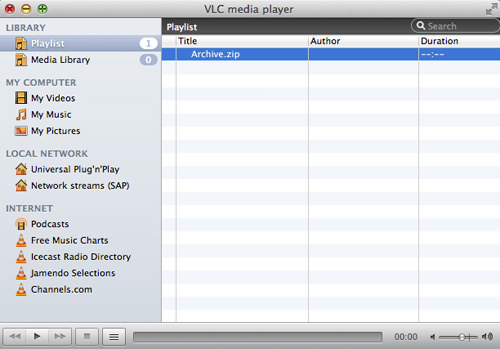
If you have a ZIP or RAR file that contains a media file, you can actually play them within VLC without extracting them. Simply open them with VLC and it will play all of the files contained within.

If the file is broken up into pieces, just open the first part of the archive in VLC, making sure all the files are within the same place. This is a good tip when you don’t want to waste space decompressing the video.

VLC Archive

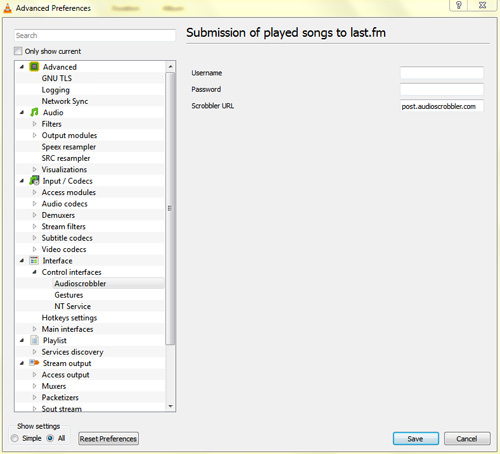
15. Scrobble To Last.fm

If you are a heavy Last.fm user, you can scrobble the music you play through VLC. To enable it, got to Tools > Preference. On the Show settings radio box, click All. Click on Interface > Control interfaces and tick the check box for Submission of played songs to Last.fm. Then, under Interface > Control interfaces > Audioscrobbler, enter in your Last.fm credentials.

VLC Last.fm

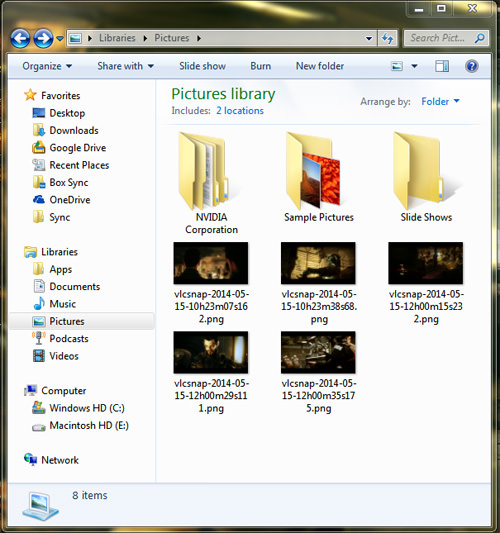
16. Take A Snapshot

Ever need to take a snapshot of a video you are watching? VLC has a way to do so. Simply use the shotcut Shift + s on Windows and Linux or CMD + ALT + s on OS X. The picture will be saved in your OS’s respective pictures folder.

VLC Snapshots

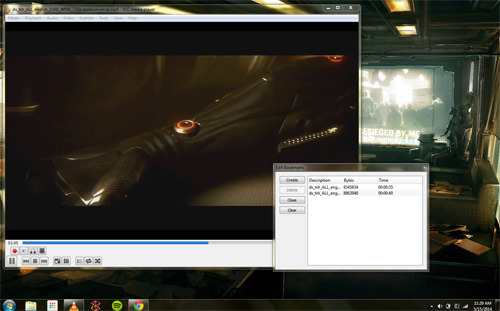
17. Bookmark A Video

You can bookmark a part of a video so that you can return to it later on, if you feel like replaying a certain part of a video. To bookmark a video, go to Playback > Custom Bookmarks > Manage. The Edit Bookmarks window will pop up. Press the Create button when at a section of a video you would like to bookmark.

VLC Bookmark

18. Add Subtitles

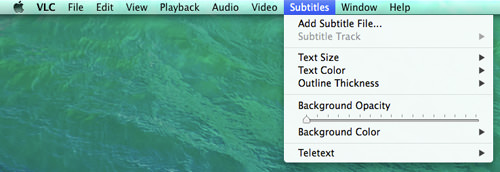
If a video you have doesn’t come with subtitles, you can add your own by finding an SRT subtitle file for the video and adding it in. To add the subtitle, play your video and go to Subtitle on the menu bar and click Add Subtitle File. If you want VLC to play it automatically, place the SRT file in the same folder as the video and make sure it uses the same file name as the video file.

VLC Subtitles

19. Double Or Slow Down The Playback Speed

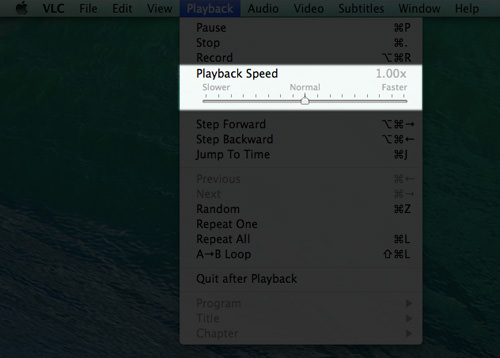
This feature is incredibly useful when you are watching a media file primarily for the content, such as podcast, audiobooks, recorded lectures, etc. To start, press ] to fast forward by 0.1x for each press. To slow it down, press [ instead. On the Mac, there is a slider to control playback speed, located in Playback.

vlc playback

20. Extensions And Plugins

Just like Firefox, you can extend the functionality and appearance of your VLC player. There are a variety of extensions and skins available on the VideoLAN site. Take a look and see what appeals to you.

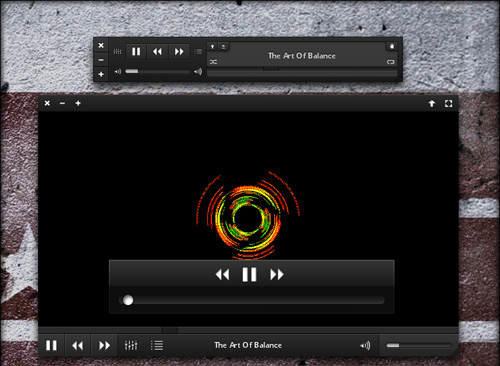
Some of the extensions enable you to automatically get subtitles, info on the actors, as well as lyrics to songs, among other things. Skins, on the other hand, allow you to modify the look of your media player and there are many available that are sure to fit your taste.

VLC Skins

Source: https://www.hongkiat.com/blog/vlc-tips-tricks/

May 20, 2025

What Free Live TV Streaming Service Has The Most Free Live Channels? Pluto TV vs Tubi vs Freevee vs The Roku Channel & More

Are you a cord cutter looking to cut the number of services you pay for? The good news is that there are a growing number of great free ad-supported streaming services.

So this raises the question of which service has the most free ad-supported live channels? Is it Pluto TV, Tubi, Amazon’s Freevee, The Roku Channel, or some other service?

So let’s take a look at how many live channels are on services like Pluto TV, Tubi, Freevee, The Roku Channel, Local Now, Plex, Sling Freestream, and more.

Here are the free live TV streaming services with the most live channels according to the most recent numbers we have:

Recently ad-supported streaming services have become one of the fastest-growing areas in cord cutting. One big part of that is live channels offering curated collections of programming.

Recently Local Now has become the largest free live TV streaming service topping 490 free live TV channels, making it the largest free streaming service for cord cutters when looking at the number of free live channels. According to Local Now, on average a, viewers will see 492 with a mix of local and national channels, including PBS live in about half of all markets.

Other services like Redbox, The Roku Channel, Amazon Freevee Xumo Play, Sling TV Freestream, and more have all been working hard to add more live channels recently.

The best part for cord cutters is the fact that all of these services are free. That means you can try all of them to see which one has the content you enjoy. So give them all a try and see which one you enjoy.

Source: https://cordcuttersnews.com/what-free-live-tv-streaming-service-has-the-most-free-live-channels-pluto-tv-vs-tubi-vs-freevee-vs-the-roku-channel-more/


July 27, 2024

Roku vs. Amazon Fire TV: Which Streaming Device Reigns Supreme? CNET

I recently switched to the Roku Streaming Stick+ as my main TV source for all my TVs. It offers better resolution than GoogleTV and easier uncluttered navigation than FireStick for everyone in my house. Below is a review from CNET. Enjoy.

Roku and Fire TV duke it out for your TV, no matter if it's for your dorm or a spare bedroom, we'll tell you which streaming device is the best.

We've got the battle royale of streaming duels on our hands, as two major companies vie for the title of Who Should Win Your Money. It's almost time for college students to head off to school, and a streaming device is one way to transform a dorm room into a home theater. But which streaming device offers the best bang for the buck? 

In one corner is Roku, the most popular name in streaming devices. In the other corner sits Amazon Fire TV, the streamer made by one of the most powerful companies in the world. Lots of people want a cheap, easy way to get streaming video from Netflix, Amazon Prime, Disney Plus, HBO Max, Hulu, YouTube and Apple TV Plus on their TV, and both companies offer numerous devices with similar prices and features that allow you to do just that. But which one should you pick? 

At CNET we've spent countless hours testing both over the years, and in general, both work really well. Most of the Roku and Fire TV devices we've reviewed received an 8.0 (excellent) rating or higher, so it's tough to go wrong. The Roku Streaming Stick 4K offers Dolby Vision and is sometimes on sale for less than the older and Vision-less Roku Express 4K Plus. Meanwhile, the Fire TV Stick 4K Max, is one of the fastest streaming devices on the market. 

Read more: Best Live TV Streaming Service for Cord Cutters

So how do you choose between Roku and Fire TV? To start, realize they have more similarities than differences. 

  • Both are super-affordable, starting at $30 for their cheapest players, and they often go on sale for less. 
  • Both have access to thousands of TV apps, including all of the major ones. Most apps look and behave basically the same on both.
  • The latest models of Roku and Fire TV are pretty much equally quick, responsive and reliable as long as you have a solid internet connection.
  • Both (except for the cheapest Rokus) offer remotes with TV volume and power buttons to control most TVs , so you can ditch the remote that came with your TV if you aren't bouncing around to other inputs. 
  • Both have multiple models, starting with basic streamers up to 4K-compatible versions with voice control built into the remotes.

So which one's better? 

Best overall: Roku

Our go-to recommendation is Roku over Fire TV. There are really just two major reasons.

Better menus. Roku's no-nonsense menu system places the apps front-and-center and lets you arrange them however you please, just like on your phone. It gets to the apps and shows want quickly, without filling the screen with other junk. 

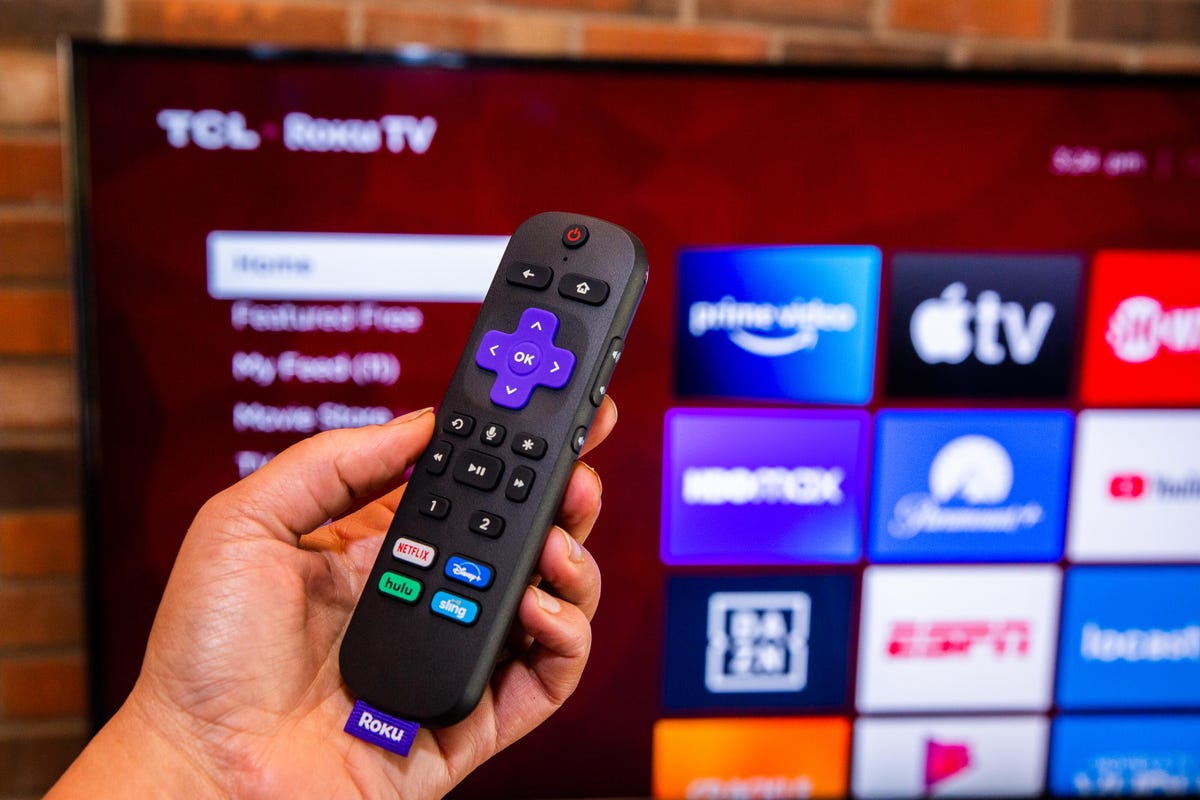
024-roku-voice-remote-pro-2021
Sarah Tew/CNET

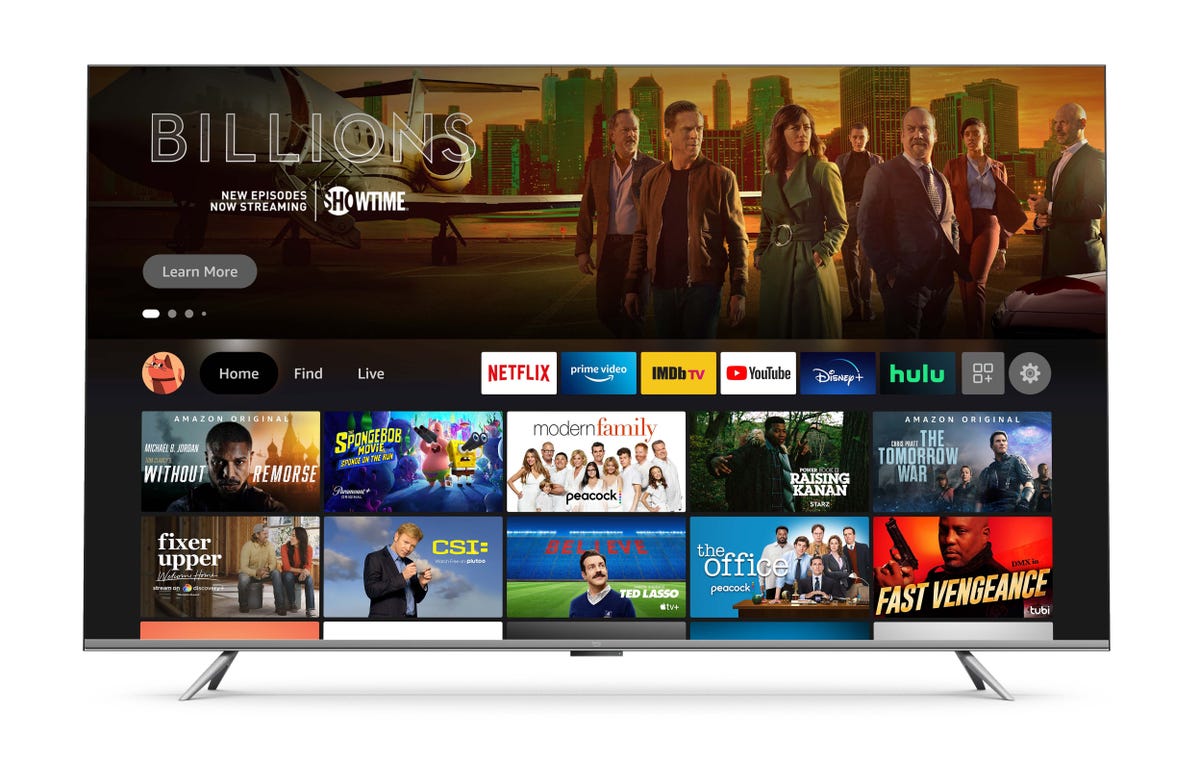
Using a Fire TV device means wading through a bunch of TV shows and movies in addition to the apps. That would be fine if they were the TV shows and movies you're in the middle of watching, or might actually want to watch -- something Netflix's menus do well. But more often than not, it is hard to care about the TV shows and movies on Fire TV's screen. They just seem like stuff Amazon or its partners want us to watch.

screen-shot-2021-06-21-at-9-41-54-am.png
Amazon

CNET's Ty Pendlebury summed up the difference in his review of the Fire TV Stick. "If you like to graze for content, the Fire TV might be more appealing. If you know what you want already, or at least what app you want to watch, a Roku is probably a better choice."

In his review of the Fire TV Max, meanwhile, Eli Blumenthal also noted the prevalence of ads in Fire TV's menus, including on the screensaver. "It's one thing to throw in a little ad here or there like Roku; it's another to turn my entire 65-inch TV into a billboard for iFit or Nancy Grace's Fox Nation show."

Better search. Search results on Roku are straightforward and price-centric. You're shown how much a movie or TV show costs and can click through to watch or buy it -- and if it's free because you're a subscriber, you'll see that, too. Fire TV's results are much more confusing, with multiple options and false positives. And once you find what you want, you're shown just one primary service, and you have to click through to see "more ways to watch."

Now Playing: Which Roku Is the Go-To? We Break It Down
Which Roku or Fire TV streaming device is right for you?

When you choose between Roku and Fire TV you're buying a specific device, not just the platform. For that reason, our advice below gets a little more specific. We break down our favorite devices in a variety of areas: price, 4K capability, voice control and more.

Here are a couple more things to keep in mind as we get into the recommendations.

  • We're talking only about streaming devices, not TVs. Both Roku and Amazon bake their platforms into TVs as well, which we also review. In general, we prefer Roku TVs to ones that use Amazon Fire TV. Check out our Best TVs list for more details.
  • Of course, we've reviewed streamers from other companies, too. Check out our list of best streaming devices for more options.

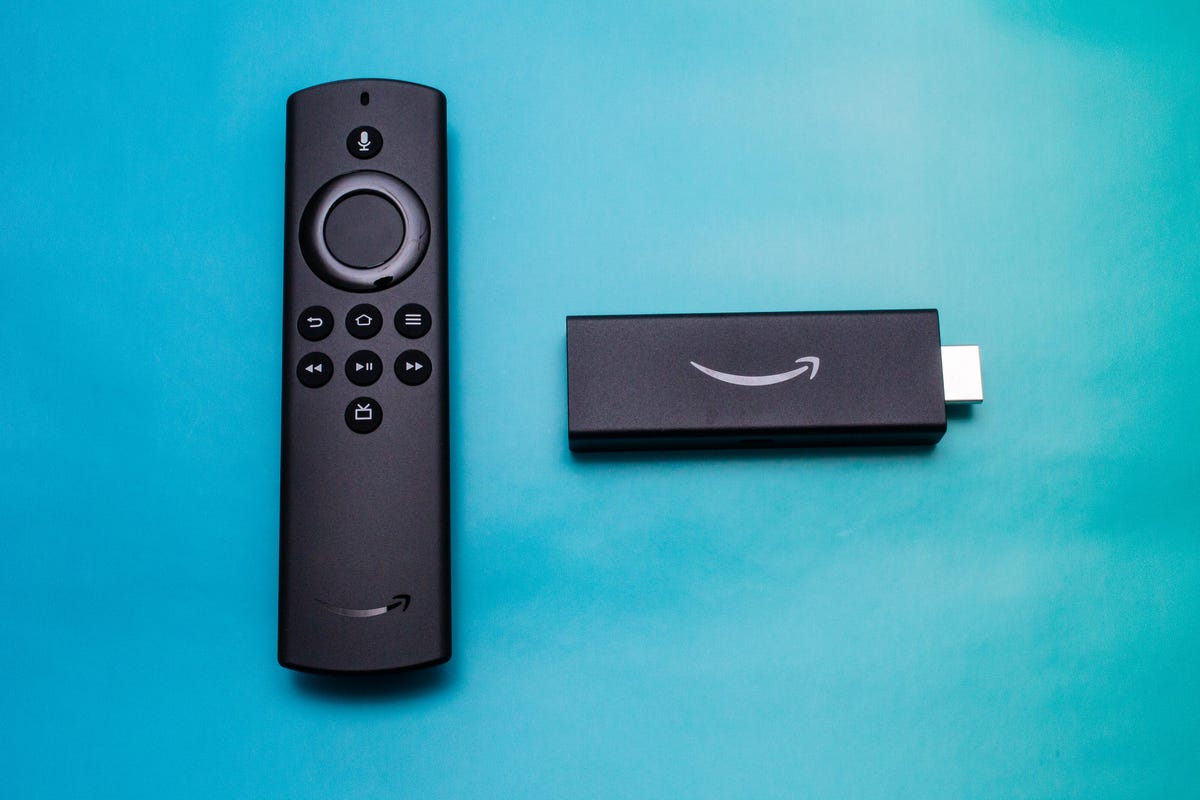
Best budget streamer: Fire TV Stick Lite

005-amazon-fire-stick-tv-and-fire-stick-lite-2020

The Fire TV Stick lite has voice control while the similarly-priced Roku Express does not.

Sarah Tew/CNET

Roku is our favorite overall platform, but the Fire TV Stick Lite offers more features at the entry level than the similarly priced Roku Express. The Fire TV Stick Lite includes a voice remote, while the Roku doesn't support voice commands via the remote. We found the Lite's built-in access to Amazon's Alexa particularly helpful when navigating through menus and searching for content. While Roku recently announced an updated version of the Express with faster Wi-Fi, the device retains its original remote.

The Roku Express is still a fine choice for a bare-bones streamer. It brings all of the advantages of Roku we mentioned above, and performs perfectly well, but the Fire TV Stick Lite ultimately offers more features for the price -- making it a better option for those on a tight budget. 

Both the Roku Express and the Fire TV Stick Lite are regularly priced at $30, but can sometimes be found for less. 


Of course, there are a bunch of other more expensive Roku players and Fire TV streamers. Many of them are better choices than these basic versions because they don't charge much more for additional very useful extras.

Best for 4K TVs and best overall: Roku Express 4K Plus or the Roku Streaming Stick 4K -- whichever is cheapest

Roku's $40 Express 4K Plus remains our favorite media streamer available right now. It offers the easy-to-use Roku interface, the voice remote that the cheaper Express lacks, 4K HDR streaming, wired Ethernet support with an optional adapter and typically costs $40. However, the Streaming Stick 4K offers support for Dolby Vision, while the Express 4K Plus does not. We're usually not sold on the Dolby Vision upgrade -- mostly because we generally don't think that it provides a major image quality improvement over standard HDR -- but if the Streaming Stick 4K costs less than Express 4K Plus, it seems like a no-brainer to pay less for a device that has it, than more for one that doesn't.

Not to be outdone, Amazon's Fire TV Stick 4K Max also features an upgraded processor, along with Wi-Fi 6 connectivity. It costs $55 -- $5 more than the Roku Streaming Stick 4K. The Max loads apps almost immediately, and navigating around the system is swift and smooth. The Fire TV Stick 4K Max is the best Fire Stick on the market today, and it's worth the extra money over the standard Fire TV Stick 4K.

But even those who opt for the older Fire TV Stick 4K will find that it offers the Dolby Vision HDR format, while the Roku Express 4K Plus does not. That may make a difference for some people, but we generally think that neither streaming device from Amazon offers enough to overcome Roku's strengths.

32-toshiba-insignia-amazon-fire-tv-edition

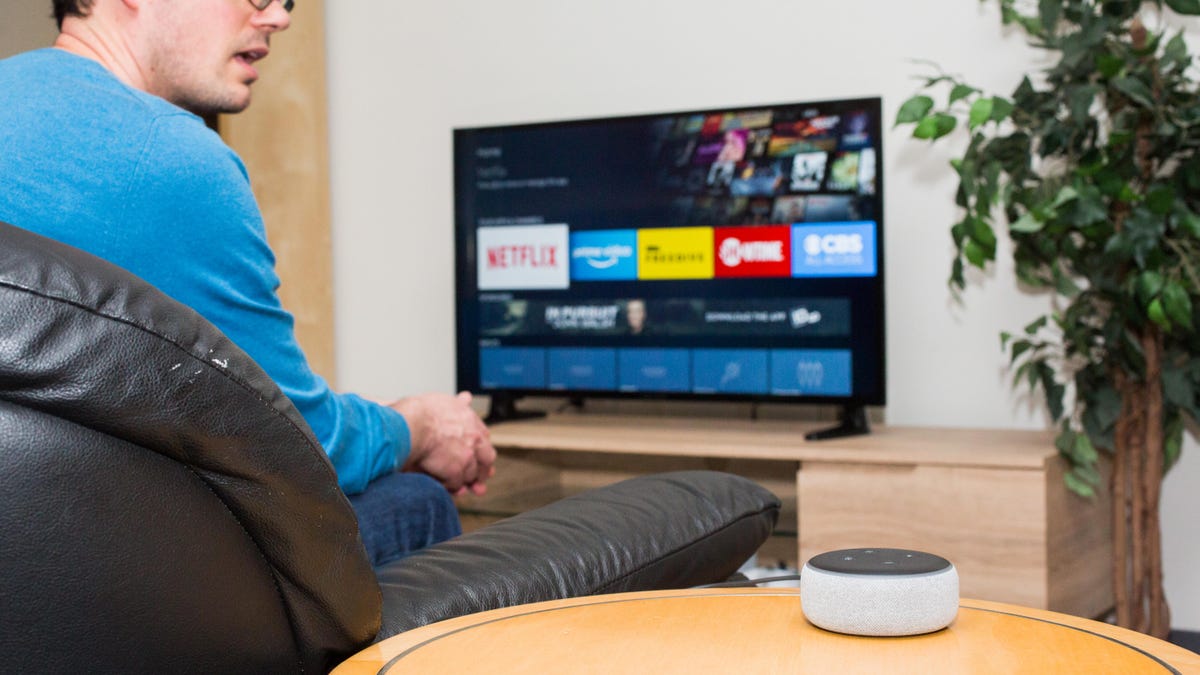
Want to watch TV hands-free, commanding the TV with just your voice? Fire TV + Alexa speaker, like this Echo Dot, works better than Roku + Google Assistant/Alexa.

Sarah Tew/CNET

Best for voice: Fire TV with Alexa

If you care about using voice control to find TV shows and movies, Fire TV wins.

Every Fire TV device from the Lite on up has Alexa voice capability built into the remote. Most Roku players also offer voice remotes using Roku's own voice system, but the cheapest models lack that feature. 

Both voice systems let you easily search, launch apps and control playback (fast-forward, pause, etc.) via voice, but Fire TV also lets you do everything Alexa does, including control smart-home devices, get a weather report and answer questions, complete with on-screen results. Alexa's voice also talks back through the TV's speakers.

If you have an Alexa speaker like an Echo Dot , you can do pretty much everything hands-free on Fire TV (no remote required) with standard Alexa commands. Say "Alexa, watch Roma" and Fire TV launches Netflix and starts playing the movie, for example. 

Roku players work in the same way with Alexa and Google Home/Google Nest speakers but not as well -- you have to remember to say "Roku" at the end of every command ("OK, Google, launch Hulu on Roku"). Still, if you own a Google speaker already and want to use it for TV control, Fire TV isn't an option.

roku-streaming-stick-2016-product-17.jpg

You can use the Roku app on your phone for private headphone listening with any Roku player

Sarah Tew/CNET

Best for private listening via headphones: Roku

Roku has long had a really cool feature on its higher-end players: A headphone jack built into the remote control itself. You just plug your headphones into the clicker and the audio on the TV or soundbar mutes automatically, and sound comes through the headphones instead, complete with volume control on the 'phones. Additionally, those with a Roku Ultra or a Roku Streambar don't need to plug their headphones into anything in order to use private listening. They can just navigate to the Sound Settings menu to pair their wireless headphones directly through the Roku. 

Plus, every Roku device offers private listening via the free Roku app on your phone -- just fire up the app and attach headphones to your phone. Roku rolled out its OS 10.5 system upgrade last year which attempts to fix the audio lags that can occur when listening through Bluetooth headphones. Roku claims that up to four people can listen privately at the same time with audio that is automatically adjusted to work with each individual's headphones. 

Fire TV's only option for private listening is to pair Bluetooth headphones, but it's not nearly as effective. Amazon lacks a way to handle the audio lag (lip sync error) and you'll need to have a volume control built into the headphones.

25-amazon-fire-tv-with-tv-control-alexa-voice-remote

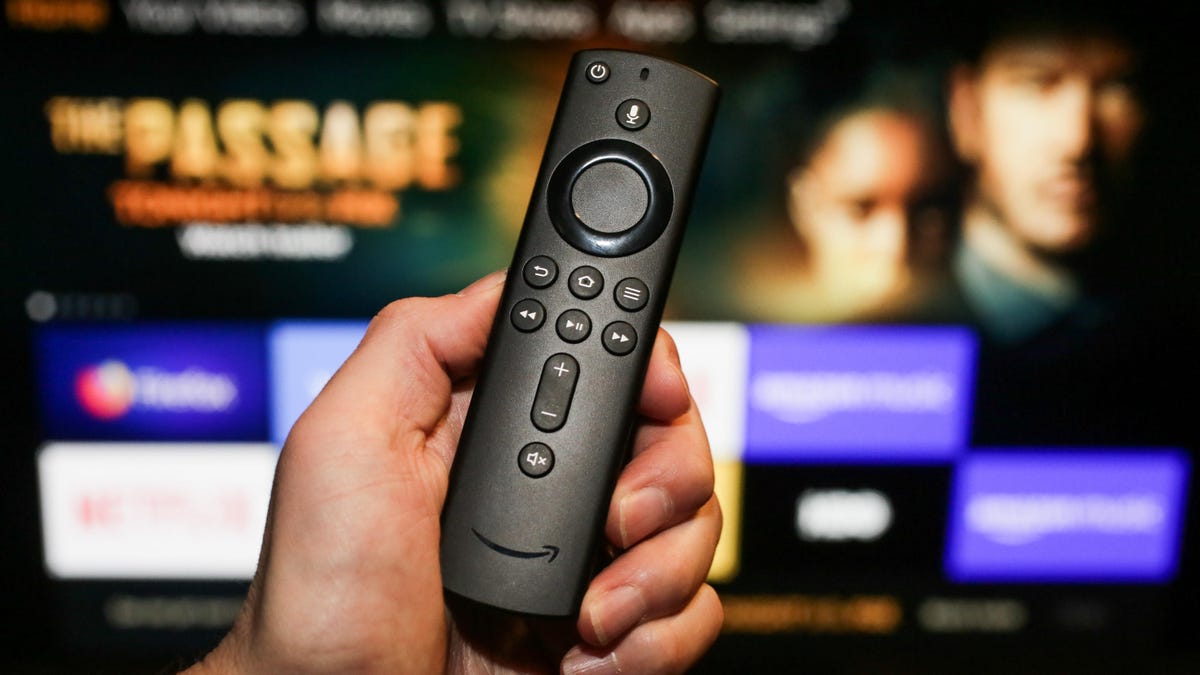
With a mute key and the ability to command sound bars and receivers in addition to your TV, Fire TV's remote is better for device control.

Sarah Tew/CNET

Best for TV and device control: Fire TV (especially Fire TV Cube)

Both Roku and Fire TV offer devices with buttons on the remote designed to control your TV. It's a great feature because it allows you to ditch your TV's own remote and use the streamer's clicker for everything. In both cases setup is dead-simple -- the streamer automatically recognizes your TV and programs the remote wirelessly, without you having to do anything besides confirming it works -- but Fire TV is cheaper and more capable.

The cheapest Roku streamers that come with TV control remotes are the $40 Express 4K Plus and the $50 Roku Streaming Stick 4K. The Fire TV Stick has a TV control remote for $40. These remotes have buttons for TV power and TV volume up/down and mute. 

Roku's remotes can only control televisions, but with Fire TV you can also control soundbars and even AV receivers . Yes, if your TV supports HDMI CEC and you have an HDMI soundbar, the Roku's volume and power buttons can probably control it, but Fire TV's remote can control pretty much any bar.

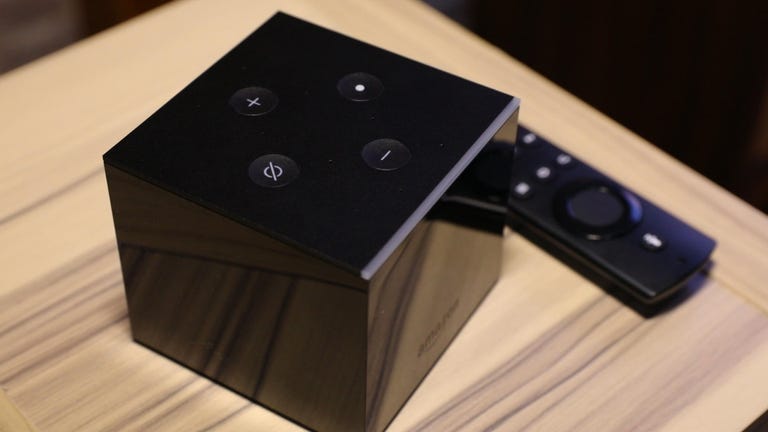
And Roku doesn't have anything like the $120 Fire TV Cube. A little box designed to sit near your TV, it combines all the capabilities of the Fire TV Stick 4K and all the capabilities of an Echo Dot, plus the unique ability to control a full-on entertainment system via voice. Using it can sometimes feel like magic, but it's not for everyone. Check out the video below if you're curious. Amazon announced a new version of the Cube for 2022, which features Wi-Fi 6E support, along with a faster processor and 4K upscaling. 

Now Playing: Amazon's Fire TV Cube gives you and Alexa hands-free TV control

By this point, you hopefully have enough info to decide for yourself which of the two most popular streamers works best for you. For our full reviews of Roku and Fire TV devices, as well as their competitors like Google's Chromecast with Google TV, the Apple TV 4K and the Nvidia Shield, check out our list of best streaming devices.

When it comes to streaming devices, Roku makes some of the best on the market. Roku products earn nearly half the spots on our list of the best streaming devices for 2024 including the top spot overall, which belongs to the Roku Express 4K Plus. Right now, an early Amazon Prime Day deal means you can pick it up for just $27 at Amazon, which is $13 off and just $3 more than the all-time lowest price we've seen. Though there's no set expiration for this offer, we'd recommend getting your order in sooner rather than later if you don't want to miss out on these savings.

We named the Roku Express 4K Plus the best media streamer of 2024 due to its affordable price tag and user-friendly interface, which makes it easy to find all your favorite shows and movies. Its unbiased platform doesn't promote one streaming service over another. It supports 4K content with HDR for vibrant colors and sharp contrast (if your TV supports those standards), and it has Apple AirPlay built-in so you can wirelessly stream content from your iPhone, iPad or other Apple devices. It also comes with Roku's convenient voice remote, which allows you to control your TV's power and volume, and search for shows and movies completely hands-free.

Source: https://www.cnet.com/deals/the-roku-express-4k-plus-our-favorite-4k-streaming-device-is-just-27-with-this-early-prime-day-deal/