4K is a bigger number than 1080p, but that doesn't mean it's better.
This is especially true when it comes to 1080p Blu-ray video compared to
4K streaming. There's more to a video's quality than resolution, and Blu-rays have it.
The Elements of Picture Quality
Terms like "4K UHD" or "1080p" refer to only one
factor that makes up overall image quality. Specifically, it refers to
the number of pixels or "picture elements" in each frame of video. A 4K
UHD (Ultra High Definition) image has around eight million pixels, while
a 1080p image has a "mere" two million or so individual pixels.
While
this means that a 4K image technically has four times the fine detail
of a 1080p image, this is not the only thing that matters to our
perception of image quality. That's why the assumption that any 4K video
will look better than any 1080p video is flawed.
Several other factors have a major impact on image quality:
Bitrate: The
amount of data used to represent each video frame can significantly
impact image quality. A higher bitrate can result in less compression
and more detail in the video.
Color depth: The number of colors that a video can display can also affect image quality. A higher color depth allows for more subtle color variations and smoother gradients, resulting in a more natural and lifelike image.
Dynamic range:
The dynamic range refers to the range of brightness levels that a video
can display. A higher dynamic range can result in more detail in the
shadows and highlights, making the image more realistic.
Compression:Compression
is necessary to reduce the file size of videos, but too much
compression can result in a loss of detail, pixelation, and other visual
artifacts.
In general, Blu-rays have an advantage over 4K streaming
videos regarding bitrate and color depth, which we'll unpack below.
They're also much less compressed, so you won't see compression artifacts. Especially since the disc is mastered and quality assured before being mass-produced.
One
area where 4K streaming has a distinct advantage over standard Blu-ray
movies is when it comes to dynamic range. Only 4K UHD Blu-rays support HDR,
but it's becoming common with 4K streaming. A good HDR 4K stream will
knock the boots of a standard 1080p Blu-ray without HDR. At least when
it comes to this particular feature.
Blu-ray's Bitrate and Color Depth Advantage
A 1080p Blu-ray disc typically has a much higher
bitrate than a 4K compressed video stream. This means the Blu-ray can
use more data to represent each frame, resulting in a clearer and more
detailed image than the highly compressed 4K video stream. The extra
data allows for a wider range of colors, more detail in the shadows and
highlights, and less visible compression artifacts such as pixelation
and blurring. You'll often hear of "crushed" blacks in compressed video, which refers to the loss of details in dark areas.
Another
advantage of Blu-ray discs is that they are not subject to fluctuations
in internet speed. This means that you can consistently enjoy
high-quality video without buffering or quality drops that can happen
when streaming video online. With a Blu-ray, you can be confident that
you'll get the best possible image quality without worrying about
internet speed.
A typical 4K stream might consume around 25Mbps
while a standard Blu-ray uses around 40Mbps, but don't forget that the
4K stream has four times the pixels, so the bitrate advantage on a
per-pixel basis is significantly more than these two numbers suggest by
themselves.
The ability to see the difference between 4K and 1080p video depends
on a few factors, including the size of your screen, how far away you
are from the screen, and the quality of the video itself.
If
you're sitting too far away from your TV, you may not see the
difference between 4K and 1080p video. That's because the further away
you are, the harder it is to see individual pixels.
Video
quality can also impact your ability to see the difference between 4K
and 1080p. If a 4K video has been compressed heavily or is low quality,
it may not look better than a high-quality 1080p video regardless of
where you're sitting.
Another wrinkle to this story is that modern 4K TVs have become very good at upscaling
1080p video to 4K. In the case of 1080p Blu-ray content, the high
bitrate gives the upscaler a lot to work with, so in the end, the
upscaled Blu-ray may be very 4K-like in resolve while maintaining the
color depth and motion detail advantages of Blu-ray.
Thanks to higher bitrates and less compression,
Blu-ray audio generally offers better sound quality than typical
streaming audio.
Blu-ray discs can use lossless audio formats, such as Dolby TrueHD
and DTS-HD Master Audio, which can deliver sound quality identical to
the original studio master. These formats use higher bitrates and less
compression than typical streaming audio, resulting in more detail,
clarity, and depth in the sound.
In contrast, typical
streaming audio often uses lossy compression, meaning some audio data is
discarded to reduce file size. While this compression can help
streaming audio to be delivered more quickly and smoothly, it can also
result in a loss of detail and a more compressed, less dynamic sound.
Common visual artifacts that can occur with 4K streams on services like Netflix or Hulu include compression artifacts, banding, and macro blocking.
Compression
artifacts are caused by the heavy compression used to deliver 4K
content over the internet. They can manifest as pixelation, blurring, or
smearing of fine details and can be especially noticeable in
fast-moving scenes or areas of high contrast, such as text on a
background.
Banding occurs when the image has visible gradients of color rather
than a smooth transition. This can be especially noticeable in areas
with subtle color gradations, such as skies or shadows. Banding is
caused by the limited bit depth of the video, which can result in color
information being lost during compression. Even on a 1Gbps connection,
your author witnessed severe banding in Amazon's The Rings Of Power
streaming at 4K, along with prominent color and motion issues.
Macroblocking
is a compression artifact that appears as large blocks of pixels in the
image. These blocks can be distracting and reduce the video's detail
and clarity. It looks like an image break-up and wouldn't be allowed on a
professionally-mastered, quality-controlled Blu-ray.
All of these visual artifacts can affect the
viewing experience by reducing the detail and clarity of the image. They
can be especially noticeable on larger screens or with higher-end
equipment, but the difference is obvious on even entry-level modern
displays.
Grab Those Blu-rays While You Can
There's a good chance that Blu-ray will be the last mainstream optical format.
Going ahead, your only option may be to buy or rent digital movies and
series. Of course, just like you can buy lossless digital music today,
you'll likely get to buy massive digital video files that equal Blu-rays
in quality. Then again, it will be some time before routinely
downloading 50GB of data for a single movie becomes commonplace.
However,
compression technology is improving, so video quality comparable to
Blu-ray may meet the further spread of high-speed internet halfway. We
don't know how long it will take, but there will come a time when
streaming, and downloadable movies will objectively offer better quality
than Blu-ray, but that still leaves other weaknesses of digital
purchases, such as having no guarantee that your access to that content
will be perpetual.
If you have a collection of old audio CDs lying around and collecting dust, then it is never too late to digitize it before they get damaged and stop playing altogether. Digitizing the audio CD is also called ripping and it means that you save them audio tracks from the CD on your computer’s hard drive in form of audio files. These audio files can have any file format such as WAV, MP3 or FLAC – any format that can be easily played on a standard Windows PC.
For ripping an audio CD there is no other software better than the good old Foobar2000. This software has been a favorite of music enthusiasts since the early 2000s and it is still being developed in 2021. Here is how we can use Foobar2000 to rip any audio CD:
Note: If you want to rip to other formats other than WAV files (MP3,FLAC, AAC, etc.), you will need to also download the Foobar Encoder Pack add-on located here: https://www.foobar2000.org/encoderpack Install it, then proceed.
Load the audio CD in your computer’s CD/DVD drive and wait for it to be recognized by Windows. In Foobar, select File → Open audio CD from the menubar.
Load the audio CD in your computer’s CD/DVD drive and wait for it to be recognized by Windows.
In Foobar, select File → Open audio CD from the menubar.
A small window will open up and when it is done detecting your audio CD, click on the Rip button in this window.
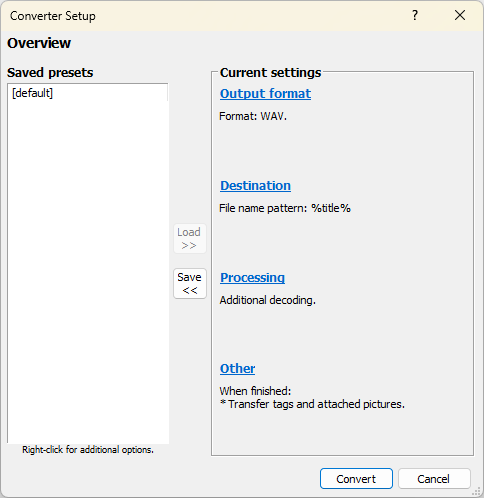
If you want to convert the audio CD into MP3 then click on Proceed to Converter Setup Dialog button. From here you can choose the output file format and start ripping.
If you want to rip the audio CD in WAV format, then choose default preset and click on the Rip now using one of the following presets.
After you have selected an output folder, it will start to rip your
audio CD. In a few minutes, you can check the output folder for all the
tracks.
As you can see ripping an audio CD using Foobar is very
straightforward. There are no complicated or confusing configurations.
However, it is not able to rip any DRM protected, locked or encrypted
content.
Foobar also does a great job splitting FLAC-CUE files. The encoder pack is all you need. Drag the CUE and FLAC files to the playlist, right click, and select Convert.
1: Select Files and Choose Output Format
Once you have added the files, they will appear in the Foobar2000
playlist. Select the files you wish to convert by clicking on them while
holding the Ctrl key (for multiple selections) or by clicking and
dragging to highlight a group of files.
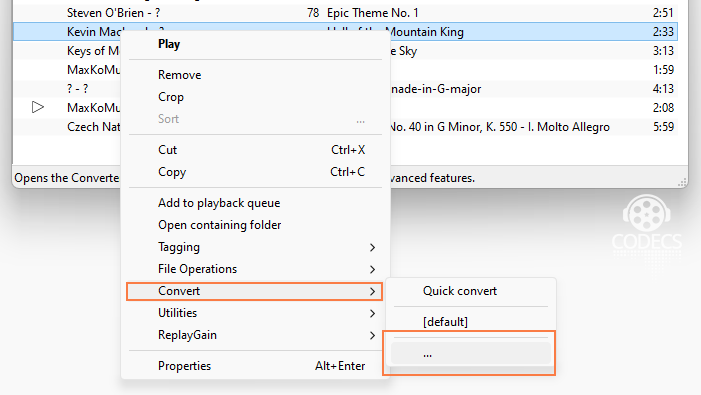
Next, right-click on the selected files and select "Convert" > "..." from the context menu. A new window will open, allowing you to configure the conversion settings.
If you need to rip tracks from CDs on a regular basis, it makes sense to get the best free CD ripper with a plethora of tools and features that make the entire process simple and fast. Besides, such programs can help you archive older albums, singles and EPs.
A reliable CD rip program reads each segment of the disc several times and compares the results with the data provided by other users in order to eliminate all kinds of errors. Unfortunately, many options advertised as the best CD ripping software can’t reach those quality standards set in the industry.
Top 7 Free CD Rippers
FairStars - Rip audio from CD in a variety of formats
dbPowerAmp - Makes archiving and encoding music a breeze
Audiograbber - Nifty good CD ripper with line-in sampling
Though the programs are designed for the same task, there are particular differences between them. The quality of the ripped files is typically worse than the original, which happens because of the transformations that take place during reading and encoding. That’s why, you need the best CD ripping software to keep the final quality as close to the original CD as possible. This mainly refers to complete and accurate metadata encoded in a lossless format.
Which
is the best media player for Windows PC — If you’re looking for this
question’s answer, you’re at the right place. Apart from being a
feature-rich software, a media player also needs to be simple,
intuitive, and lightweight. If we take these factors into account,
players like VLC, GOM, Media Player Classic, etc. are recommended. But,
what about their features?
As there are tons of software available for Microsoft Windows
platform, choosing the right one for your computer isn’t an easy task.
Also, with the increasing number of newer media formats, not all free
media players are capable of running all popular file formats like MKV,
FLV, AVI, MP4, MOV, etc. That’s why very often people send us emails
asking the question “Which is the best media player for Windows?” This
has prompted me to prepare a list of the best free media players for
Windows operating system. You can also check our previous lists of top video players for Android and Linux.
Apart from being a free video media player, it should also be
lightweight to make sure that your multitasking doesn’t take a hit while
watching movies and TV shows. So, let’s take a look at different
options and help you make the best possible decision:
10 Best Media Players for Windows
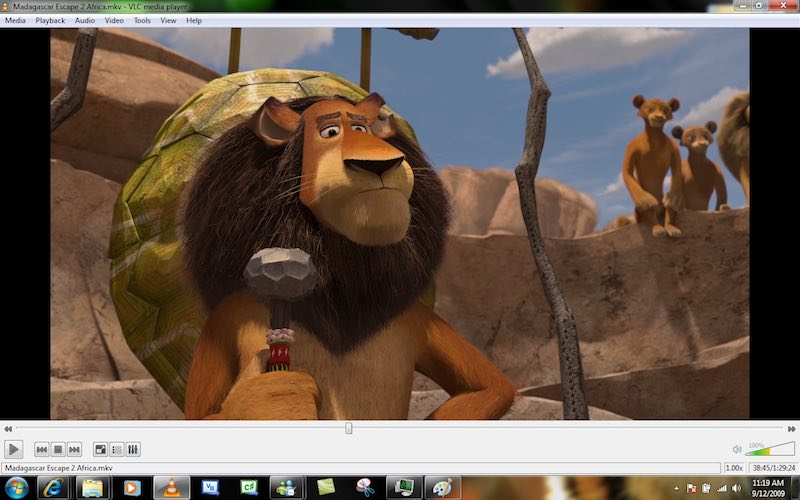
1. VLC Media Player
VLC media player
Whenever we start any discussion of the best media players and how
great they are, the name VLC automatically comes at the top. But, why is
it so? What’s the reason behind its massive popularity? VLC Media
Player is a free and open-source media player that’s available for all
popular platforms. Created by the VideoLAN project, VLC Media Player is
known to support a vast number of audio and video compression methods
and file formats. Over the years, VLC has earned the reputation of being
the “play everything” video player. VLC has also inspired the
development of many other media players with the same focus.
VLC is one of the best PC media players due to its fast and simple
nature that doesn’t involve any painstaking steps. The software also
features different customization options that can help you improve your
viewing experience and change the look of the player. It’s also often
used a streaming media player. Being an open source media player, you
are free to examine its source code. This amazing Windows Media Player
alternative also receives frequent updates and has a large user
community. It runs on all Windows versions, from Windows 10 to Windows
XP SP3. From time-to-time, this free movie player keeps receiving new
features and updates. It’s my de-facto choice for fulfilling all media
playback needs. You can also check out our dedicated article on VLC tricks. Supported Platforms: Windows 10, Windows 8.1, Windows 7, Windows Vista, Windows XP – VLC Media Player website
2. PotPlayer
Pot Player in action
Competing with other video players like VLC, PotPlayer has managed to
earn a good reputation in the recent times. This multimedia software
for Windows platform has been developed by South Korean internet company
named Kakao. PotPlayer has tons of features and specialties that can
easily give VLC a run for its money. This recommended media player comes
with a wide range of customization options that allow you to make this
software fit for your needs. Using the techniques like CUDA, QuickSync,
and DXVA, PotPlayer is able to deliver maximum performance and a
lightweight experience. That’s why PotPlayer is the second best media
player on the list.
Compared to VLC, PotPlayer might be less popular but it supports even
more file types. It goes without saying that it’s a great player for
MP4/FLV/AVI/MKV files, which are very common. You have the option to
make a choice between sound cards, bookmark your favorite scenes and
preview them, etc. You also get filters for brightness, contrast, hue,
noise reduction, etc. It also comes with lots of built-in keyboard
shortcuts and hotkeys. But, what makes VLC more popular than PotPlayer?
Well, for most of the users, the long list of features and settings
might be just too much. Also, PotPlayer is limited to Windows. Overall,
PotPlayer is one of best media players around if you want to ditch VLC
Media Player. Supported Platforms: Windows 10, Windows 8.1, Windows 7, Windows Vista, Windows XP – PotPlayer website
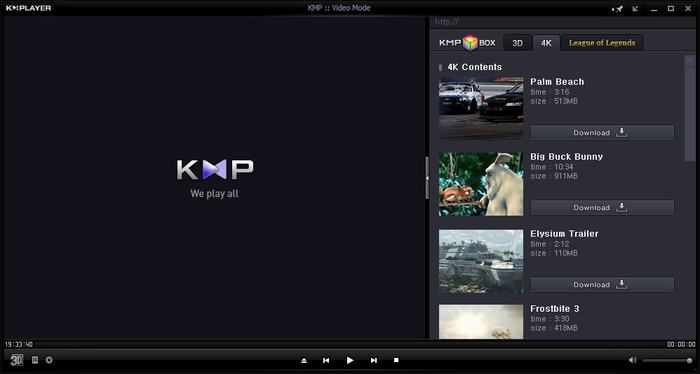
3. KMPlayer
KM Player
KMPlayer is another great and free Windows 10 media player that
possesses the ability to play almost all mainstream video and audio
files. As it has an inbuilt codec for Windows 10, the users don’t need
to look for any different codec. To increase its compatibility even
further, you can add external codecs. With the support for 3D, 4K, UHD
support, the users can enjoy high definition videos on your devices.
KMPlayer is also known for its wide range of support for formats. The
users have lots of choices when it comes to audio and video effects
which makes sure that you don’t feed the dearth of any feature or
support. You can choose the parts of videos as favorites, make them
repeat, remap the keys for remote interface, etc. You also get the
feature of editing subtitles right inside the player. First released in
2002, KMPlayer free media player was acquired by a Korean streaming
company Pandora TV in 2007. Supported Platforms: Windows 10, Windows 8.1, Windows 7, Windows Vista, Windows XP – KMPlayer website
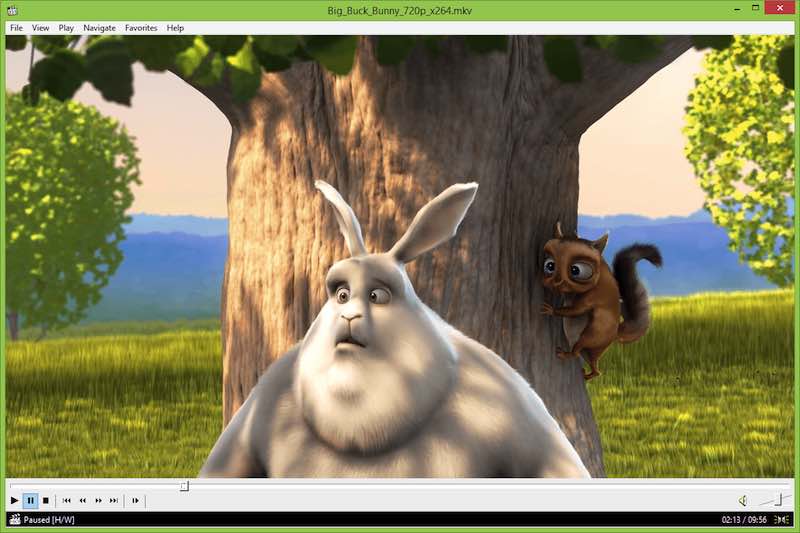
4. Media Player Classic – Home Cinema
MPC-HC for Windows
Just like its name signifies, Media Player Classic is a classic media
player that was bound to be featured on our list of best media players.
Build after the halted development of the original Media Player
Classic, the Home Cinema version is an effort made by the community of
its fans. Together, the developers have improved the older version and
made a speedy and lightweight software. The other fork of the original
Media Player Classic is the Black Edition. If we compare both of them,
Home Cinema ranks better and keeps improving its feature set to rank
among the best media players.
Talking about all the fancy features, just like other software on
this list, Media Player Classic doesn’t come loaded. But, that doesn’t
mean that it’s going to disappoint you. This free multimedia player can
be used even on your old computer without any hassle. Media Player
Classic is a great Windows 10 Media Player alternative and it also
features a DVD player software on Windows 10, subtitle download option,
Skype integration, etc. Supported Platforms: Windows 10, Windows 8.1, Windows 7, Windows Vista, Windows XP – MPC-HC website
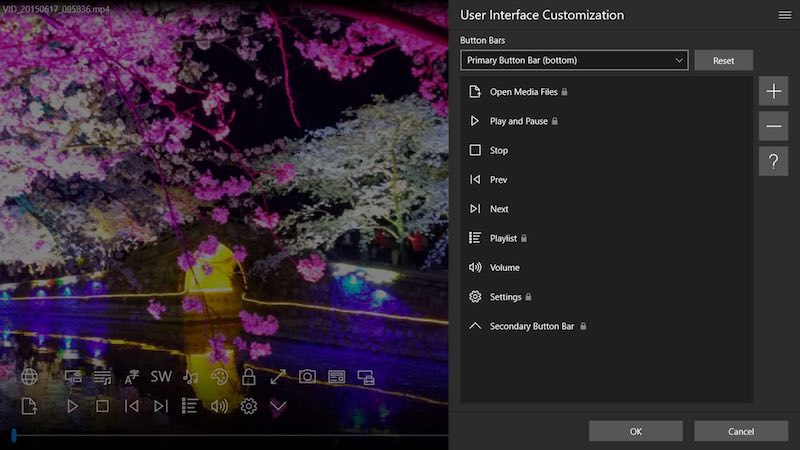
5. ACG Player
ACG player for Windows 10
If you’re looking for a UWP media player app for Windows 10 that’s
clean looking, it’s time to stop your search becauase ACG Player could
be your final choice. It’s a lightweight media player that has all the
essential features like audio and video effects, music visualizer, art
font subtitle, gesture control, background music. etc. ACG Player
supports most media codecs out-of-the-box and follows no-nonsense
policy. It also supports playback from external devices, files, and
discs. An even more lightweight version of ACG Player is available in
the form of Ax-Lite, which is its faster version without some features.
Do give it a try for its clean and zippy interface. Supported Platforms: Windows 10 – ACG Player website
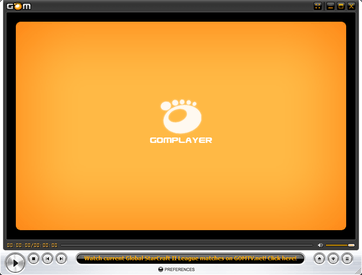
6. GOM Media Player
GOM Player
GOM Player, or Gretech Online Movie Player, is a completely free
Windows media player alternative that comes with inbuilt support for the
most popular video and audio formats. That means it can play all the
most popular video formats like AVI, MKV, MP4, FLV, MOV, etc. Apart from
the basic functionalities that come loaded with other popular PC media
players, GOM Player comes with lots of advanced features like A-B
repeat, Media Player Capture, speed control, audio and video effects,
screen capture, etc. It also gives you the choice to change skins and
make the whole look of GOM Player highly customized.
Using GOM’s own library, you can download lots of subtitles and enjoy
movies and TV shows in your preferred language. You can also link this
awesome media player for PCs with the vast database of
OpenSubtitles.org. It could be possible that this media player software
might not support some uncommon types. For that scenarios, GOM Player’s
Codec Finder service will let you search for the missing codec. GOM
Player for Windows supports a wide range of operating systems, ranging
from Windows 10 to Windows XP SP3. Supported Platforms: Windows 10, Windows 8.1, Windows 7 – GOM Player website
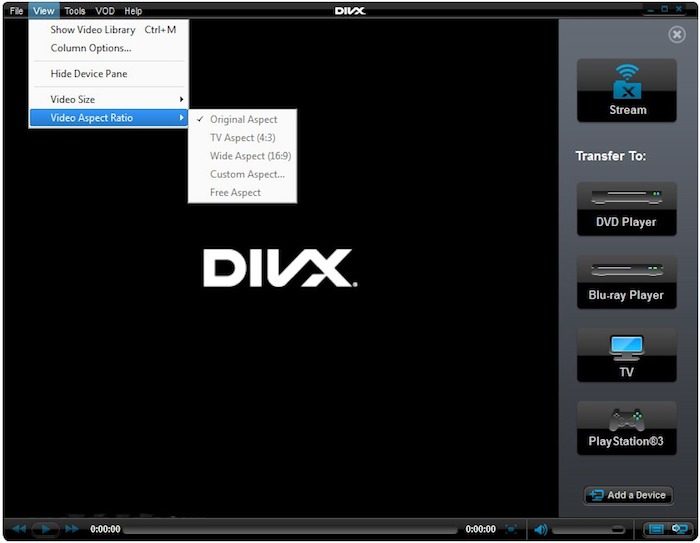
7. DivX Player
DivX Player
The #7 entry on our list of best media players is DivX Player for
Windows. It calls itself the first of its kind media player that offers
free HEVC playback. With this popular and useful media player, you can
also enjoy UltraHD (4K) playback. It goes without saying that DivX
player is optimized for played video files in the most popular formats
like MP4, MKV, DivX, and AVI. DivX also acts as a streaming media player
that lets you stream music, video, and photos to any DLNA-compatible
device.
DivX player also comes with advanced features like Trick Play, which
lets you jump to your favorite scenes easily. With the support for
Chapter Points, you can simply play different scenes. Its smart media
library keeps track of the purchased as well as private video content.
The support for multiple audio means that you can switch among different
soundtracks without hassle. With its Resume Play feature, you can
simply jump to the point where you left off. Supported Platforms: Windows 10, Windows 8.1, Windows 7, Windows Vista, Windows XP – DivX Player website
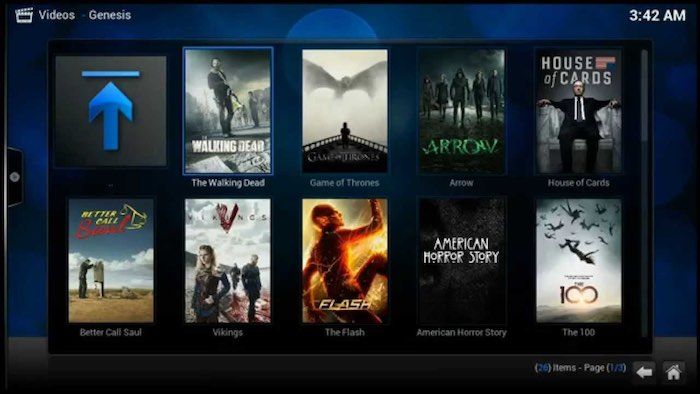
8. Kodi
Kodi for Windows
Kodi, formerly called XBMC, is a free and open source media player.
It’s a highly customizable media player that you can use on your laptop
or desktop to get a media center experience. Just in case you’re missing
Windows Media Center on Windows 10, Kodi is a great alternative. This
contender for the top media player for streaming content is even better
if you’re using it with an external, larger display because of its
10-foot user interface. In the recent past, Kodi has been in the headlines due to pre-loaded Kodi boxes and add-ons that support piracy.
Kodi plays almost all popular video and music formats, podcasts, and
other digital media stored locally or on the internet. Initially, Kodi
was independently developed and called Xbox Media Center for the 1st gen
Xbox gaming console. This recommended media player also has plug-ins
that can be used to expand its features and include functionalities like
Netflix, YouTube, Hulu, Veoh, etc. Kodi’s source code is open source
and developed by a global community of unpaid volunteers. Supported Platforms: Windows 10, Windows 8.1, Windows 7 – Kodi website
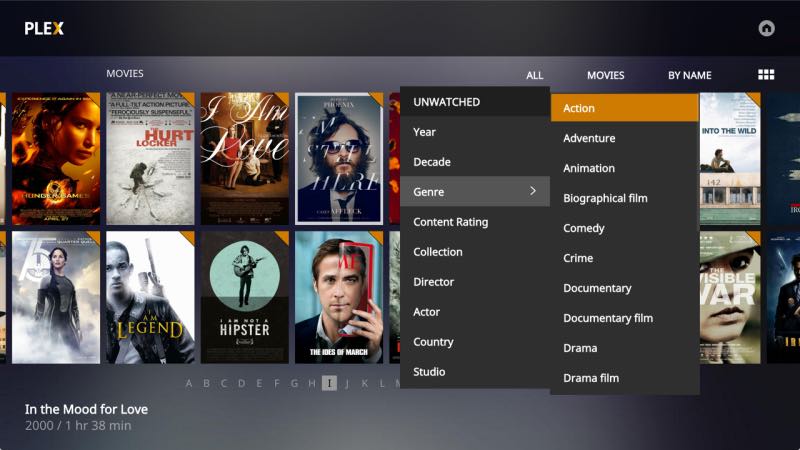
9. Plex
Plex
Back in 2015, Plex made a big change and replaced their Plex Home
Theater with its new Plex Media Player. Plex lets you easily take care
of your large media collection, which can include anything like videos,
TV shows, movies, photos, personal videos and music, etc. It organizes
your collections and makes it look great. With its easy-share nature,
you can pick and choose what to make public and give your family access.
It supports almost all file types, including hi-fi music and video
formats. As it’s Chromecast supported, you can cast the videos on your
larger TV screen. You can also use the Plex app on your phone or tablet
to take control of your player. Use this app to streamline your video
content library and get the advantage of a feature-rich video media
player as well. Supported Platforms: Windows 10, Windows 8.1, Windows 7 – Plex website
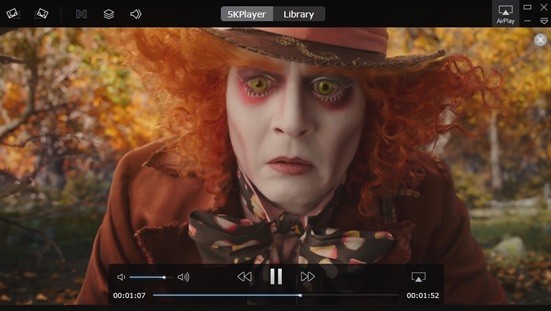
10. 5KPlayer
5KPlayer for Windows
5KPlayer, the final entry on the list of recommended Windows media
players, is a top-rated video player for Windows 10 as it’s extremely
compatible. It claims to play almost all kinds of videos and music
without any plug-ins, and it actually delivers. Its interface is very
clean and simple. It’s also known for its more streaming options.
5KPlayer also lets you import videos and music from websites like
YouTube, Facebook, Vimeo, MTV, etc. It goes without saying that it’s
compatible with common formats like MP4, MOV, M4V, MP3, AAC,
etc.5KPlayer Supported Platforms: Windows 10, Windows 8.1, Windows 7 – 5KPlayer website
So, which free media player is best in your eyes? Which one do you
use to enjoy movies and other media content? Don’t forget to share your
views and become a part of the discussion.
by Joel Lee. These days, I mostly stick to Spotify for streaming my favorite music and Pandora for discovering new music.
Gone are the days of downloading gigabytes of data and trying to fit
them all on a device. Now I can just listen to whatever I want, wherever
I want, as long as I have a Wi-Fi connection.This Smart Trick Keeps Your Pandora Stations FreshThis Smart Trick Keeps Your Pandora Stations FreshPandora is a great
music service, but sometimes your stations get a little stale. Here's an
easy way to improve them without any effort.Read More
But there are benefits to downloading music instead.
The best one? Being able to play music even when you don’t have
internet access. You also only need to download songs once (which
preserves bandwidth) and you can keep your music forever (as long as you
don’t delete any of it).
If you’re going that route, you now have
a decision to make: which music player are you going to use?
Truthfully, there are a lot of great ones out there, but here are the
ones we’ve found to be the best.
As
far as I’m concerned, foobar2000 is one of the wonders of Windows. It
launched way back in 2002, making it one of the oldest surviving apps
that people still recognize. And in all that time, it has avoided the
biggest mistakes that most apps make: losing focus, becoming bloated,
and not staying relevant.
We praised the virtues of foobar2000
several years ago, and still sing those praises today. It’s lightweight
enough to let you listen to music on any system, no matter how old,
without bogging down performance. And it’s simple enough that you won’t
feel overwhelmed. Yet, it’s extensible through plugins, so you can
incorporate new functionality if you want.
There’s a reason why we have it on our list of Best Windows Software. And as long as it doesn’t lose its way or make any huge mistakes, it will stay in that spot for years to come.
Notable features include:
Lightweight interface is fast, responsive, and customizable.
Supports all major audio formats, including AAC, AIFF, FLAC, MP3, OGG, WAV, WMA, and you can always add more support by installing components.
MusicBee
calls itself the ultimate music manager and player, and based on what
I’ve seen, it deserves that description. This player really cares about
delivering the best music experience it possibly can and giving you the
tools to tweak everything to your liking.
Perhaps
the best thing about MusicBee, which seems to be missing from a lot of
music players these days, is the lively and active community around it.
The forums have thousands of active members and hundreds of new posts
every day — not just for support, but also for user-contributed content
like plugins, skins, tips, and tricks.
Notable features include:
10-band and 15-band equalizers for maximum audio quality.
Automatically tags your music for instant organization.
Handles WASAPI for serious audiophiles with high-end audio equipment.
Supports skins and plugins.
Imports iTunes and Windows Media libraries.
ReplayGain and gapless playback.
Available on Android and Windows Phone for mobile sync and playback.
If you can believe it, Winamp is even older than foobar2000 — by more than five years!
Having launched in 1997, the road has been bumpy at times, and Winamp
nearly shut down altogether back in 2013. But the current version as of
this writing is pretty good. If you ever gave up on Winamp, now might be
a good time to try it out again.
That
said, Winamp has always been a love-it-or-hate-it kind of program. It’s
packed full of features that are definitely useful, but the interface
is unique and some consider it to be a bloated mess that received too
many unnecessary additions over the years. But is it terrible? Not at
all.
Notable features include:
Supports all major audio and video formats, including AAC, AIFF, FLAC, FLV, MKV, MP3, MP4, OGG, WAV, WEBM, WMA, WMV.
Handles skins and plugins.
Imports iTunes libraries.
Discover new artists with dynamic song recommendations.
Smart views and dynamic playlists for variety.
Available on Android for mobile sync and playback.
MediaMonkey is crazy useful for anyone who has a massive media library
— we’re talking hundreds of thousands of songs. A lot of music players
slow down and choke when trying to manage and process that much data,
but MediaMonkey handles it with aplomb.
The
downside to MediaMonkey, if you can even call it a downside, is that
it’s perhaps too advanced for a lot of users. Not that it’s tough to
use, but the interface can be a bit overwhelming to navigate, especially
if you’re used to something more streamlined like foobar2000 or Winamp.
Overall, however, MediaMonkey’s feature set is impressive and
worthwhile.
Notable features include:
Supports all major audio and video formats, including AAC, FLAC,
MKV, MP3, MP4, OGG, WAV, WMA, WMV. Also has a WASAPI plugin for serious
audiophiles with high-end audio equipment.
Handles transcoding between most supported audio formats.
ReplayGain and gapless playback.
Jukebox and Auto-DJ features for parties and public events.
Advanced media tagging, including auto-identification of songs.
Batch and automatic renaming of filenames according to your preferred pattern.
Available on Android and iOS for mobile sync and playback.
You
may not have heard of Dopamine before. Most people haven’t, which is
such a shame. Because this nifty little music player specifically
targets Windows users. It aims to provide a solid music-playing
experience with all of the essentials and none of the bloat.
If you ever used Zune Player, you’ll feel right at home.
Dopamine has
a dark and light theme as well as an accent color (which can be set as a
custom color or it can automatically match your Windows accent color).
Point it to however many music library folders you have and it will
automatically update based on changes therein. Simple and
straightforward.
Notable features include:
Extremely simple and lightweight, essentially barebones.
Supports the following audio formats: AAC, FLAC, MP3, OGG, WAV, and WMA.
Convenient quick controls in the Taskbar, the system tray, and notifications.
Multiple player modes, including cover, micro, and nano modes.
Works well on desktop and mobile versions of Windows 10.
These
two are suspiciously missing from this list. One is a favorite of fans
all around the world and the other comes pre-installed on all modern
Windows systems. Why did we exclude them?
VLC is an excellent way to play media, but it’s more of a video player
than a music player, whereas some of the apps we highlighted above are
music players first and video players second. This is most evident in
the interface, which is better suited for video management than music
management. But it’s also apparent from the heavy feature set, which may
not be desirable for simple music playback.The Top 5 Free Media Players for WindowsThe Top 5 Free Media Players for WindowsStrong media player
apps always rise to the top and it's not important which one you use.
The best media player for you is the one you most enjoy using. We
suggest the following...Read More
Groove Music is okay as well, but perhaps a
little too primitive at the moment. You can play local music with it but
the interface is a bit too clunky to recommend. However, if this
article was expanded to include 10 apps, Groove Music would absolutely
be on there.
For now, I’d only use this player if you’re also subscribed to Groove Music Pass, which lets you stream millions of songs like Spotify or Apple Music.
At
the end of the day, it comes down to whatever you like best. So which
one is your favorite and why? Share your thoughts with us in a comment
below! And if you think we missed a great app, please let us know! Source: https://www.makeuseof.com/tag/best-free-music-players-windows/
MusicBee made it in the top 20 of programs that Ghacks readers cannot live without. Reason enough to check it out and review it here on the site as I have not done so before. It can be best described as a management program for music as it offers way more than just music playback. Aside from playing popular music formats it supports automatic tagging, music management, CD ripping, automatic playlists, music conversions, audiobook and podcast support, and more.
MusicBee is available as a portable version or setup. An import dialog is displayed on first start to get all of your music recognized by the program. It supports imports from Windows Media Library and iTunes, and offers to scan one or multiple local folders as well. The import happens quickly and once it is done, the music library is opened in the program. Depending on how well organized your collection was, you may end up with an orderly list of genres, artists and albums, or a messed up list.
That's not necessarily the program's fault though as it uses existing tags for that. That's where the program's tagging capabilities come into play. If you notice that albums or tracks are not filed correctly, right-click on one or multiple tracks and select one of the available tagging options to correct that issue. MusicBee supports manual tagging options which give you full control over the process and automated tagging options which looks up information that are available in online databases to suggest matching tags.
The tag editor highlights differences when you select a suggested album from the list of suggestions which makes it easier to find the matching album in the list. A mix of automatic suggestions and manual editing is supported as well which may speed things up especially if lots of albums are suggested but none seems to fit yours. You find another tagging related feature in the tools menu. Use it to display songs with missing tags, artwork or lyrics to deal with them one after the other without having to go through the whole music collection to do so. As far as playing is concerned, all it takes is a click on a song to do that. A right-click on a genre, artist or album plays all tracks filed under it automatically which means that you are covered in this regard as well. A click on the preferences icon in the player toolbar displays tools that enable you to control playback even more. Enable the 10-band or 15-band equalizer there, configure DSP plugins or import compatible Winamp DSP plugins if your favorite one is not included in the default selection.
In addition to those options, playlists are supported. While you get regular playlist options that enable you to create your own lists via drag and drop, a selection of automatic playlists are available on top of that. Use them to play recently added or played songs, the top 25 most played songs or use the program's auto DJ functionality which offers extensive customization options that include selecting individual libraries, playlists or folders, applying filters, and track weighting based on various metrics such as ratings or recency. Automatic playlist creation is supported on top of all that. If you are in a hurry or like surprises, you may find the option useful. Playlists are created based on your initial configuration ranging from letting the program do all the work to selecting specific folders, artists or other information that you want included in the selection process.
Enter a music CD to get the album recognized by MusicBee automatically. Even better, right-click the drive and select the rip CD option to add it to your collection on the computer permanently. Doing so displays tagging options right from the start with some information filled out automatically. One thing missing here is the option to look up the missing information directly on the Internet. Since the functionality is integrated in MusicBee, it is not clear why it is not available when you are ripping music CDs. Some information are looked up but not all of them. This leaves you with the option to add the missing information manually or wait until the album is on your computer as you can then use the program's automatic tagging option to fill in the blanks.
Services is another interesting feature. It lets you search for songs on SoundCloud to play those directly in the player, or check out a list of upcoming releases or concerts. If you select concerts you are asked to pick a country and town first. Not all cities are necessarily supported; in Germany for instance, only four cities are listed including Berlin and Cologne but not major cities such as Hamburg or Munich. The player interface is customizable on top of all that. If you don't require certain panels, hide them from the interface so that they don't show up anymore. Switch to one of the available skins instead of which some change the interface significantly.The compact player interface for instance displays only album artwork and the tracklist while the mini player skin tops even that by displaying just a small toolbar on the screen while music is playing. Theater modes change what is being displayed while music is playing, and skins change the interface of the player. One issue that you may have with skins is that the player needs to be restarted each time you switch a skin. If you do that while music is playing, playback is interrupted automatically as well. What else? MusicBee ships with a collection of tools that help you organize your collection. From finding duplicates to downloading artwork and restoring the original volume of a track, all there to help out when you require them. Once you dig deeper into the settings, you find even more features and options that you may find useful. There are lockdown settings to protect the player from being tampered with which may be ideal for parties provided that you want to prevent others from changing songs or modifying the configuration in a way or another. Right-click a song and find related artists or songs in your collection, or use the send to menu to convert the file or copy it to another location on your system. If you open the player preferences, there is even more to explore and configure. Browse hotkeys and set missing ones to control the player from the keyboard, integrate file converters for maximum compatibility, or define the default CD ripping format or enable MTP device support.
Conclusion
MusicBee is an excellent music management and playback program for Windows. It offers such an immense set of features that it feels sometimes that you never get to know them all because there are that many. While that feeling may fade over time, it is almost certain that you will stumble upon features every now and then that you did not know about before. The developer baked so much into the program that you will have a hard time finding a program that offers a comparable feature set. The one downside to MusicBee's feature-richness is that it takes some time to get used to it. While you can ignore most features, you may want to take advantage of at least some of them as they can improve how you play and organize music significantly. This is one of the best music programs for Windows and probably the best all-in-one program you can get your hands on for free.
I love my audio CD collection. I really do. But carrying a hundred CDs with me on a vacation just so that I can listen to that one song when I have to, isn’t exactly my idea of fun. On the other hand, my iPod lets me take more than a hundred CDs worth of songs and is perfectly at peace sitting in a corner of my backpack. So is there even a choice here ? For folks like me who have a small fortune invested in CDs of their favorite artists, the best option is to convert all those CD tracks to MP3 format and that is what this post is about. A list of 5 tools that’ll help you convert your CD’s to an MP3 collection.
iTunes
iTunes is one of those software that almost everyone has on their computer – either because they own an iPod or because, well, they like it. It is a resource hog, I’ll admit, but is also a very capable media player. What many people don’t know is that iTunes is also a very good software to convert a CD to MP3 format, and the process really couldn’t have been simpler.
iTunes, by default, saves songs imported from CDs in the AAC format. To change the default to MP3, open the Preferences Window (Edit->Preferences) and click theImport Settings button.
Select the MP3 Encoder option from the drop down and Click OK.
Now all you have to do is insert the audio CD in the computer and as soon as iTunes detects it, it will pop-up a dialogue box asking for your permission to “import” the CD to it’s Library. Click Import and let iTunes do its job.
FreeRIP
One of the reasons that I like FreeRIP is its support for the lossless FLAC file format but FLAC is not the only format FreeRIP rips to and it is equally at home with the MP3 format also. If you’re ripping songs to put on your iPod, MP3 is what you want to stick to. Just insert the audio CD in the CD tray and select the Rip Selected Tracks to MP3option from the Rip menu.
BonkEnc
BonkEnc is another easy to use free and open source CD ripping tool that can also be used as an audio converter for converting audio files into different formats.
The process of encoding is as easy as it can be. Insert the CD in the drive tray, press the CTRL+E key combination and grab yourself a cup of coffee.
We’ve written about CDex earlier and it’s managed to make this list too. Says a lot about the tool that I personally swear by. Download and install it if you need a simple no nonsense tool.To convert CD tracks to mp3 format, insert the CD, select the tracks that you want converted and hit the F9 button. It really is as easy as it sounds.
Exact Audio Copy or EAC claims to read audio CDs “almost perfectly” and it even tries and correct errors that it finds. The downside is that it doesn’t ship with a built-in MP3 encoder. But, EAC works with the excellent open source MP3 encoder, LAME.
LAME is one of the best MP3 encoders around and a number of commercial programs also use it and you’ll have to download the LAME library on your computer for the encoding functions of EAC to work.
When you run EAC for the first time, it takes you through a wizard which, among other things, asks for the location of the lame.exe file that you downloaded.
That is just about the only configuration you’ll need to perform with EAC. Insert an audio CD, click on the MP3 icon in the sidebar and sit back and relax.
What tools do you swear by for ripping CD’s? One of the above or something totally different? Let us know about it in the comments.
Regardless of which version of Windows you are using, it comes with Windows Media Player. Just insert a music CD in and change the settings to rip in MP3 format. You can also rip to the lossless FLAC format. Enjoy.